Tag: How to Move Contacts from New Outlook into Your CRM Database

Best Way to Export Contacts from New Outlook for CRM Integration

| June 29, 2025

Best Way to Export Contacts from New Outlook for CRM Integration

You can skip to the bottom for the instructions, much of this blog post is about exporting/importing and the different data types. 

This post in “in progress” and will be updated as I have new information about exporting and importing contacts to and from New Outlook. People will be needing to export contacts from New Outlook for a variety of reasons, moving to a new CRM, setting up Dynamics 365 (D365), moving to a new email server (Google Workspace to Exchange or vice versa) setting up a newsletter list, import into LinkedIn, etc. I’m writing up all the different export options for Outlook Classic, New Outlook, Mac Contacts, Mac Outlook contacts, Exchange contacts (OWA),  iCloud contacts, Gmail Contacts, Yahoo/AOL Contacts, iPhone and Android contacts.  I will also do import options next and do a section on categories. Categories are not matching up between all the different types found from my research.

Before doing any serious contact work (migrating to CRM, Dynamics), please read this post and understand how it works. It might save you some time working on it.

New Outlook Contacts does not export the same fields as Outlook Classic does. Microsoft Exchange, IMAP (This Computer Only) and PST contact data typically export to a standardized Outlook template with the same fields. This has not changed since I’ve been working in Outlook.

It’s also hard to write up a “how-to” as so many people have different types of contact data setup in New Outlook. This post is long but worth the read if you are having issues or want to learn. I will update this page as I have more testing results. This is the kick off of my whitepaper. Bookmark this page if you like, it will be posted on this page as well https://callthatgirl.biz/new-outlook-resource-guide/

Few things to note:

  • Fields that you are used to seeing a typical export template in Outlook  Classic might be missing in New Outlook
  • Fields you see in New Outlook contacts export might be missing all of your data (seen that happen), or have some of your custom fields missing (very common)
  • When you export out of New Outlook, the fields have some new fields that will not match in Outlook Classic (such as Surname, Given Yomi, many others).

THE TEMPLATE: 

  • You will see that this template is not a typical Microsoft Outlook Classic export template. The export is also missing “Title” and “Display Name” and at this point, before importing into a CRM or another database, I would highly recommend that you have a template for Outlook handy so you can change the fields (I have one here you can download). https://callthatgirl.biz/wp-content/uploads/2025/06/Outlook-Classic-Contacts-Template.csv

How each type exports and views: 

  • Outlook Classic –Imports all your fields, even custom fields
  • New Outlook –-Will export Exchange data, but exports to a new csv that does not follow the Outlook Classic, there are new fields added (Given Yomi, Surname, etc.)
  • Mac Contacts (testing in a few weeks)
  • Mac Outlook contacts (testing in a few weeks)
  • Exchange contacts (OWA) -Will export Exchange data, but exports to a new csv that does not follow the Outlook Classic, there are new fields added (Given Yomi, Surname, etc)
  • iCloud contacts –these can be exported from Outlook Classic with the iCloud for Windows installed. The data seems to match but the first/last name seems to be needing to be switched in the template before you export. I am testing exporting out of New Outlook now. Just like many people, my iCloud account is setup with an email I have already set up and associated with a Microsoft personal account. New Outlook will not allow you to add this account natively, you will need to make an alias in the Apple ID area. Confusing yes but can be done and keep both emails. Be aware that the iPhone might not see the first/last name the same on the iPhone contacts or Outlook app (seen that happen for some of my clients). It’s a view issue, data is fine.
  • Gmail Contacts –These contacts can be exported but most likely will not import into Outlook or any version correctly. I need to open my template and then fix the fields to match for importing
  • Yahoo/AOL Contacts –These contacts can be exported but most likely will not import into Outlook or any version correctly. I need to open my template and then fix the fields to match for importing. This export is my least favorite to fix.
  • Outlook App (iPhone and Android) –these are connected to the cloud and should not need to be exported/imported from phone.

Later for Importing: 

  • iPhone contacts –if these are “on my iPhone” these will have to be exported out through an app on the phone to get exported, cleaned up in a template and then imported

How to export contacts from New Outlook

Open New Outlook

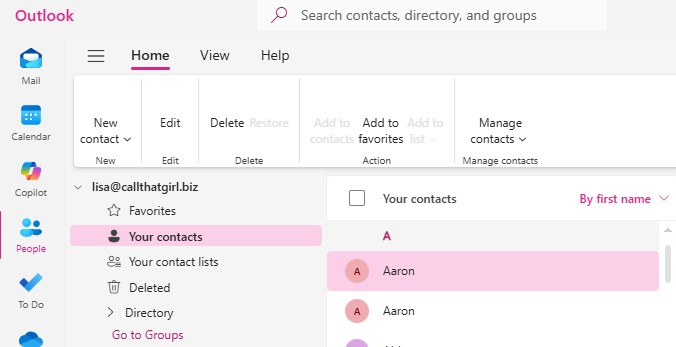
Go to the “People” on the left blade

To go “Your contacts” and then you will see a “Mange contacts” on the right/middle area” (see image below)

Click on “export contacts” and right now you should only see an option for “All contacts” and it will export to a CSV file.


If you need my help, use the form below to get in contact.

How to Export Contacts Out of New Outlook

| June 29, 2025

How to Export Contacts Out of New Outlook

You can skip to the bottom for the instructions, much of this blog post is about exporting/importing and the different data types. 

This post in “in progress” and will be updated as I have new information about exporting and importing contacts to and from New Outlook. People will be needing to export contacts from New Outlook for a variety of reasons, moving to a new CRM, setting up Dynamics 365 (D365), moving to a new email server (Google Workspace to Exchange or vice versa) setting up a newsletter list, import into LinkedIn, etc. I’m writing up all the different export options for Outlook Classic, New Outlook, Mac Contacts, Mac Outlook contacts, Exchange contacts (OWA),  iCloud contacts, Gmail Contacts, Yahoo/AOL Contacts, iPhone and Android contacts.  I will also do import options next and do a section on categories. Categories are not matching up between all the different types found from my research.

Before doing any serious contact work (migrating to CRM, Dynamics), please read this post and understand how it works. It might save you some time working on it.

New Outlook Contacts does not export the same fields as Outlook Classic does. Microsoft Exchange, IMAP (This Computer Only) and PST contact data typically export to a standardized Outlook template with the same fields. This has not changed since I’ve been working in Outlook.

It’s also hard to write up a “how-to” as so many people have different types of contact data setup in New Outlook. This post is long but worth the read if you are having issues or want to learn. I will update this page as I have more testing results. This is the kick off of my whitepaper. Bookmark this page if you like, it will be posted on this page as well https://callthatgirl.biz/new-outlook-resource-guide/

Few things to note:

  • Fields that you are used to seeing a typical export template in Outlook  Classic might be missing in New Outlook
  • Fields you see in New Outlook contacts export might be missing all of your data (seen that happen), or have some of your custom fields missing (very common)
  • When you export out of New Outlook, the fields have some new fields that will not match in Outlook Classic (such as Surname, Given Yomi, many others).

THE TEMPLATE: 

  • You will see that this template is not a typical Microsoft Outlook Classic export template. The export is also missing “Title” and “Display Name” and at this point, before importing into a CRM or another database, I would highly recommend that you have a template for Outlook handy so you can change the fields (I have one here you can download). https://callthatgirl.biz/wp-content/uploads/2025/06/Outlook-Classic-Contacts-Template.csv

How each type exports and views: 

  • Outlook Classic –Imports all your fields, even custom fields
  • New Outlook –-Will export Exchange data, but exports to a new csv that does not follow the Outlook Classic, there are new fields added (Given Yomi, Surname, etc.)
  • Mac Contacts (testing in a few weeks)
  • Mac Outlook contacts (testing in a few weeks)
  • Exchange contacts (OWA) -Will export Exchange data, but exports to a new csv that does not follow the Outlook Classic, there are new fields added (Given Yomi, Surname, etc)
  • iCloud contacts –these can be exported from Outlook Classic with the iCloud for Windows installed. The data seems to match but the first/last name seems to be needing to be switched in the template before you export. I am testing exporting out of New Outlook now. Just like many people, my iCloud account is setup with an email I have already set up and associated with a Microsoft personal account. New Outlook will not allow you to add this account natively, you will need to make an alias in the Apple ID area. Confusing yes but can be done and keep both emails. Be aware that the iPhone might not see the first/last name the same on the iPhone contacts or Outlook app (seen that happen for some of my clients). It’s a view issue, data is fine.
  • Gmail Contacts –These contacts can be exported but most likely will not import into Outlook or any version correctly. I need to open my template and then fix the fields to match for importing
  • Yahoo/AOL Contacts –These contacts can be exported but most likely will not import into Outlook or any version correctly. I need to open my template and then fix the fields to match for importing. This export is my least favorite to fix.
  • Outlook App (iPhone and Android) –these are connected to the cloud and should not need to be exported/imported from phone.

Later for Importing: 

  • iPhone contacts –if these are “on my iPhone” these will have to be exported out through an app on the phone to get exported, cleaned up in a template and then imported

How to export contacts from New Outlook

Open New Outlook

Go to the “People” on the left blade

To go “Your contacts” and then you will see a “Mange contacts” on the right/middle area” (see image below)

Click on “export contacts” and right now you should only see an option for “All contacts” and it will export to a CSV file.


If you need my help, use the form below to get in contact.