Tag: Outlook Email Support

A few tips on how to manage your LinkedIn through Outlook

| October 9, 2013 | 0 Comments

If you’re like me, you want to be more connected on LinkedIn, but during your workday you just can ‘t find the time to stay connected. As much as I adore LinkedIn, I do have a job to do during the day and don’t have time to always be on the site.  I discovered a quick way to manage all of my LinkedIn “everything messages” in just one inbox in my Outlook (You don’t need to use Outlook btw).

Not only does this awesome little management tool help me stay on top of my messages, I actually participate a lot more now on LinkedIn than I did before responding to direct messages more often and staying on top of discussions I should be spending time with. And we all know that the more time you put into LinkedIn, the more marketing time you get in, and that brings in the money folks. So these tips should help you as I have found they help me.

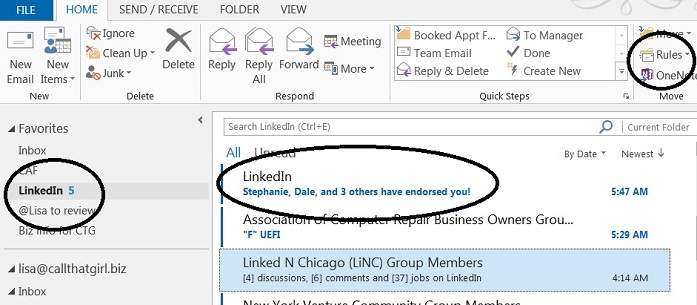
On with the tips! See the picture below. I circled some important areas. Also, I have Outlook 2013, your version should be similar.

  1. Create a folder in your inbox called “LinkedIn”
  2. Now go to your new LinkedIn folder and right click on it, select “Show in Favorites” (Your favorites is the area at the top of your folder list in Outlook that is somewhat like a new message hotspot. Great tip for those with tons of email accounts and rules to see new emails!
  3. Create some rules. Open the email from LinkedIn, at the top of the message there is a “Rules” option and if you click on it, you should see “Always move messages….” And then you can go find your new LinkedIn folder in the list.
  4. For those that are heavily involved with LinkedIn, you probably get a few different types of emails.
    1. Notifications of new messages from others
    2. Group Discussion updates (usually weekly, could be daily depends on your settings)
    3. Someone has endorsed you
    4. Someone likes your group discussion
    5. Someone has participated in a discussion you started or you have posted in
  5. Now I see new emails in the LinkedIn favorites folder and I peek at them daily now to see what’s going on. Who’s doing what, etc
  6. As a marketing reminder, those somewhat annoying and pesky “endorsements”, I have found them to be interesting in terms of marketing. I get a few of those a day, and then when I see I got an endorsement, I either look at that person’s name because it’s in the inbox or I go onto LinkedIn and then endorse them back and many others. Most people aren’t interested in endorsements, but hey…if it takes 5 minutes for a bunch of people to see my name (marketing, marketing, marketing!), it’s probably worth that time.


outlook-ad-300x130


callthatgirl250x250alt


How to remove Outlook 2013 local computer (1) calendar

| October 4, 2013 | 0 Comments

Edited to add: there are more solutions since I have created this post in October of 2013….and I deleted the original fix. Since there are so many issues that can happen if you remove or delete a calendar, I just ask those to call me if you need help. Once I am in your computer, I can see what you have going on and fix it better than explaining 10 different repair options. Usually I do not do this when I post a blog, but people’s calendars are so important and I can’t risk someone losing it for a simple “how to” blog.

office365 podcast2

As a professional, I insist on backing up everything in Outlook before I assist. Safety first kids! As well, there are so many people using 3rd party apps, iCloud, iTunes, and Outlook.com that I’m sure you want those to still work and be default. And if they are not default, I can help configure everything so it just works better.

Please call 612-865-4475 or fill out this form if you’d like my help.


Office365 Podcast

Tips on how to buy a new computer to replace your Windows XP computer

| September 9, 2013 | 0 Comments

Since many people are buying new computers because Windows XP will not be supported after April of 2014, here is a guide to buying a new computer and what needs to be done once you buy it. My recommendation? Buy before Christmas too.

Buy the computer is #1!

Here are some ideas on how to purchase, stay in your budget and make a good decision on a computer that will last you many years.

Mac or PC? 

Ah, the big debate! Many PC users are moving to Mac and for a reason, but should you is the question? Many of my clients have called in that have replaced their PC with a Mac to find the learning curve not so easy and the costs outweighing the PC by bounds and leaps. You cannot install your PC software (such as Office) on the Mac and you will need all new. The Mac itself costs much more and the learning curve as I said before…is a lot different, but it can be conquered! Macs are usually better hardware quality, last much longer than a PC and yep, don’t crash as much or get viruses (they can, but not as destructive).


schedule-an-appointment

office365 podcast2

Tower or Laptop?

If you have a nice monitor and prefer a tower, by all means just get another tower. Standard computers are $300 to $500. If you need a more robust computer, you will spend more obviously.

  • A good laptop for the home is around $500
  • A good business computer will run you $500 to $900.

How much memory should you buy with the computer?

I would buy a computer with 6-8 gigs of memory. If you buy less, one day you will want more. The deals are pretty good with the 6-8 so I recommend that.

What about hard drive size?

Most computers today come with 320 gigs to 1 Terabyte of data space. Get as much as you can for the deal you can get.

Windows 8 or Windows 7?

Try to find a Windows 7 computer if you can, If you buy Windows 8 you will need to have some settings adjusted for you to use it in the manner you are used to. We can help you with that of course if you buy Windows 8
click here

Dell, HP or other brand?

Dell and HP are the most common computers sold today. If you want to spend more, you will get a better quality hardware computer.

Do you have your software ready?
Many of you bought a computer years ago and it already had Office on it. You did not get it for free, many people think so. You did pay for it and it probably came preinstalled with  your computer. You need to find your disks and license keys. If you do not have these, you need to contact whoever you bought the computer from to get a copy if you don’t want to buy the new Office 2013.

If you need to buy new software, Microsoft has some handy packages for you to get software at a low price. But they changed their licensing to one computer per install. Not two as it used to be.

To read more, click here

Want just basic word and excel for free? Try Open Office, it has the look and feel of Microsoft products without the extra cost

To download, click here

Buy it!

Now, with all the awesome online deals, you can just buy your new computer online…or should you? I’ve been very disappointed lately with some of the new laptops out there with the touchpad on the left side (due to the fact they added on calculator keys to the laptop keyboard). I bought a laptop with the touchpad on the side and I hated it. I could not get used to working “off” my usual and needed the touchpad in the middle. This may bother you as well.

I do recommend you go to a store that sells computers and touch and feel them. Be sure you don’t have heavy glare in the screen, the keys are ok for you to constantly be typing (some are horrible and float, my fingernails got stuck using!), and be sure it’s not too heavy (laptop only of course) if you will be traveling often or carrying it around.

If you find a good laptop in a store and it has my recommendations, buying it at the store may be best, then you can also return it fast too if you need. Returning online is a pain, but you can get better deals too.

TIPS!

  • If you have wireless in your house, get a computer with wireless already installed on both laptop (standard) and your tower, not standard, but worth getting!
  • Buy the extended warranty if you have a business computer, usually these are good deals and with your business needing to stay running, the warranty may have next day or same day assistance.

Budget!

Stay within a budget that works for you. If you can get financing that is a great deal, go for it. Never buy a computer from a rent a center or retail location that has huge interest rates.

schedule-an-appointment

Set it up

Setting it up at home by yourself may be something you want to do or you can hire us to help. Or you can do it yourself and call us if you need help with certain iss

Here is how we can help. Once you get your new computer up and running, you will need the following done to insure you can get back to work quickly or without hassle if you don’t know how to do it.

  • Install a Windows 8 start menu
  • Transfer your data
  • Set up your printers
  • Set up your Outlook/Email
  • Install your software (new or old)
  • Set up your antivirus
  • Remote the junk preinstalled

For more tips…

To read a blog published awhile back on buying a desktop, click here

Laptop click here

To have us assist, please call 612-865-4475 or email info@callthatgirl.biz and we can help you do the purchasing as well as everything else. You will save money by having us help you even with the buying, did you know most people OVERPAY for their computers?

Subscribe to the Microcenter newsletter, each week they have some good deals! Here is this weeks specials.

If you enjoyed this blog, please use the share buttons below and help support Call That Girl Technology Support! Thank you!


Microsoft Office 365 Consultant 2

Office365 Podcast

How many Internet browsers do you need?

| August 1, 2013 | 0 Comments

Did you know that there are currently 5 major web browsers on the market? Most people know about Internet Explorer (IE) and maybe Chrome due to Google’s influence. But Opera, Safari and Firefox also have a large share of the market.

Really? Two? Three? Four? Five? Why do you need so many? I ask because almost all of my clients now use three browsers. Internet Explorer, Firefox and Chrome.  Back before Chrome, it was mostly IE and Firefox competing…they said “Use Firefox, it’s more secure and fast”…not anymore. Then came Chrome, they said the same thing “It’s more secure and faster”…not anymore. Might be faster, but it’s not so safe in regards to installing 3rd party software and I have found it allows more junky extensions and redirect pages than any other browser out there.

So back to my question, how many do you need? I need one. I’m a die hard Internet Explorer gal here. I do have three browsers on my computer for testing and Googling. But I could live with just one. And when I say I use one, I just use Internet Explorer, all day everyday. Sometimes when I am working with someone, they will say “It doesn’t work on my computer” and I say “What browser are you in”….yep, not every browser works the same on every computer, so yeah…I get it, why you need more than one. But for day to day, use just one is what I recommend.


Now the reason I am asking how many do you need or use is because of this…when a redirect toolbar gets loaded into a computer (usually downloaded by you unknowingly), it normally installs into all three browsers. I know to remove it from all three, but sometimes other things break while fixing this…such as flash. On occasion, one of the browsers just isn’t going to work the same as it did and on occasion I have to ask the client to just use one browser because I have put in time to fix one (that they don’t use often, and it keeps breaking, usually because they install more 3rd party software after I did a redirect removal believe it or not!).

My job sometimes never ends 🙂

If you have any questions or IT support needs don’t hesitate to contact Call That Girl today by scheduling an appointment here!


3 Good Reasons Your Business Needs Paid Antivirus and Security

| May 21, 2013 | 0 Comments

In today’s blog, Call That Girl is going to talk about the lesson one client learned during a routine Outlook support session on the importance of having a paid anti-virus protection, reliable data backup and secured routers for your business.

Some time ago I was working with a client on a remote Outlook project and as usual…I had them fill out my client agreement form and they stated they had been backing up and had antivirus, good deal….we moved on. If they had not had either, we would have had a short discussion on why having both, a good paid for antivirus program and a solid back up plan is important. Of course, Call That Girl sells both packages, but they were fine.

When Viruses Strike

I went ahead with the Outlook work and during this time, a virus struck one of the computers in the office. It was so bad that Century Link banned them from internet usage. The whole office was then under attack and shut down; no internet. We moved our Outlook project to the side to focus on the virus and getting their internet back on. Luckily the client had a hot spot and we could install programs from a flash drive, but could you imagine the nightmare that could have happened?

More Technical Trouble

After I tried to help them as much as I could remotely, we also found the router was not secured. Whoever installed the router did not put on a security password to log into the router; so, anyone in their building could have accessed it, got on their network and potentially hacked their systems. As far as backup, they are using local external hard drives. After this situation, we will be moving their data to the cloud – mostly because of theft or fire.

In the end, we secured their router, removed the virus, returned the internet and got back on track with the project. Slight delay…but it could have been way worse for this company.

Reasons for paid anti-virus protection!

1.) Free Anti-virus is never a good answer for a company. We prefer paid anti-virus, because it is more reliable, capturing about 90% of the attacks out there, and can be  backed up with a free program like Microsoft Security Essentials to get the rest.

2.) If you are not sure about your router being secure, we do spot checks here at Call That Girl. We will remote in, check your security and if you wish, change your Wi-Fi passwords. This is a good idea, too, if you have a lot of guests. We can also set up a guest account, so they don’t have any access to network devices or computers.

3.) Go online backup, that trusty external hard drive you’re been using for years can crash at any moment, any time. Data recovery is very expensive and lightening has struck and zapped too many of my clients computers to not have backup in the cloud. The cloud is not expensive and worth every dollar.

If you and your company need some help with these issues, please call in for an appointment at 612-865-4475. We will be glad to help!


Microsoft Office 365 Consultant 2

Do you need Outlook relief from a support expert?

| May 13, 2013 | 0 Comments

The Outlook Expert

Microsoft Outlook is the number one used software program for businesses for a reason. It’s great, works well and usually does what you need it to do – manage your email, create rules and help manage your day to day. Not every computer repair technician knows Outlook well enough to service your calls quickly, though. This is where I step in. Since the 1990’s, I have been supporting email programs. I started off with a program called “Mulberry” and it worked great, but only managed email. Then in 2000, when I graduated college I got my first job in the corporate world supporting Lotus Notes for American Express. Lotus worked ok, but was clunky at that time. Two months later I secured a new position with Honeywell and they were a Microsoft shop and this is where my love for Outlook began.

For 13 years I have engaged in all the Outlook versions and in the past two years moved into supporting all types of email, not just Outlook, but Mac Mail, Entourage, Outlook 2011, Thunderbird, Windows live mail, you name it…I can support it. Outlook is my love, though. I know it very well and am fast at repairing and training my clients to use it most efficiently.

The Outlook Relief

Is your Microsoft Outlook giving you just too many headaches? Let’s schedule a tune-up for you and your Outlook program to learn how to use it better, repair your minor glitches and get you back on track…and back it up! Most people have no idea that they need to back it up.

Schedule an appointment today for a one hour session with Lisa for $99 (Save $30)

During this appointment we will cover the following:

  • How you are doing your email (Pop or IMAP), insure it’s the best choice for you
  • Repair Outlook if necessary
  • Should you upgrade to the latest Outlook 2013
  • Check Add-ons and remove those not needed
  • Local Folder Check (PST files) for size and organization
  • Fix odd glitches you may be experiencing with address books, multiple calendars
  • Help you organize your files correctly
  • Show you how to create rules for non-work essential emails
  • Verify backup

Extra Services

  • Synchronize calendar and contacts with the cloud
  • Smartphones
  • Hosted Exchange Transition
  • Google Gmail Transition
  • iCloud
  • 3rd party synchronization products
  • Upgrades for Outlook 2013

To book an appointment, please click here or call 612-865-4475


outlook-ad-300x130

Microsoft Office 365 Consultant 2