Author Archive: Lisa Hendrickson

Lisa Hendrickson is the owner of Call That Girl. She is an Outlook Expert and Microsoft 365 Consultant.

rss feed

Author's Website

How To Setup Office 365 2-Step Verification and Multi-Factor Authentication

| June 9, 2017 | 0 Comments

How To Setup Office 365 2-Step Verification and Multi-Factor Authentication

Step 1: Log into your Office 365 Admin Center

Step 2: Click on the user name and a box on the right will pop up

Step 3: At the bottom of the box, you will see “More settings” and then click on “Manage multi-factor authentication”

Tip! If you are the admin, you will maybe be prompted to setup and Azure account.

Step 4: In the User Server Settings area, click on the user name. Then to the right you will see “Quick Steps” and then select “enable”

Step 5: Now log into Outlook.Office365.com on a browser. It will instruct the user to setup security for their account. Typically people have phone/text verification.

Step 6: After you got the text, the screen will give you an “app password” keep this handy! You will need it more than once if you have many computer setup with Office 365.

Final Tips!

Outlook will prompt you for this new “app password” shortly. For me it took 2 hours.

iPhone it took 12 hours

Browser, immediately. You need your real password for this and it will offer a text code.

If you are using it on the browser only, you will need to put in the real password every time and get the text code. I tested it and it does not work with “keep me logged in

All Mail Not Showing in Outlook 2016

| June 9, 2017 | 0 Comments

 All Mail Not Showing in Outlook 2016

I found the help on a Google forum. So sorry to inform you that I was not the mastermind behind this but I am helpful still! And, who needs this folder to show up? Usually people that want to get email off the Gmail server and be able to keep it in their local Outlook folders. Once you have 30 gigs on the server, it’s time to get it off the server.

Instructions

Step 1: In Outlook, click on the “Folder” tab at the top. Then you will see “IMAP Folders” Click on that.

Step 2: Hit the “Query” button

Step 3: Click on the [Gmail]/All Mail and unsubscribe and then hit query and then subscribe again.

Step 4: In Outlook, expand the folders under the [Gmail}. Right click on the [Gmail} and select “New Folder” (see image below)

Step 5: Name it “All Mail”

Step 6: hit send/receive and email will start downloading to Outlook.
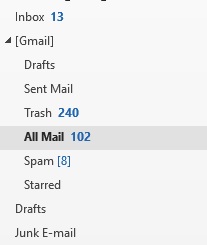
If this does not help, then you might have other issues and I can help with that. Use my online scheduler to get on calendar.

Gmail folder All Mail Missing in Outlook 2016

| June 9, 2017 | 0 Comments

Gmail folder All Mail Missing in Outlook 2016

I found the help on a Google forum. So sorry to inform you that I was not the mastermind behind this but I am helpful still! And, who needs this folder to show up? Usually people that want to get email off the Gmail server and be able to keep it in their local Outlook folders. Once you have 30 gigs on the server, it’s time to get it off the server.

Instructions

Step 1: In Outlook, click on the “Folder” tab at the top. Then you will see “IMAP Folders” Click on that.

Step 2: Hit the “Query” button

Step 3: Click on the [Gmail]/All Mail and unsubscribe and then hit query and then subscribe again.

Step 4: In Outlook, expand the folders under the [Gmail}. Right click on the [Gmail} and select “New Folder” (see image below)

Step 5: Name it “All Mail”

Step 6: hit send/receive and email will start downloading to Outlook.

If this does not help, then you might have other issues and I can help with that. Use my online scheduler to get on calendar.

Missing Gmail All Mail Folder in Outlook 2016

| June 9, 2017 | 30 Comments

Missing Gmail All Mail Folder in Outlook 2016

I found the help on a Google forum. So sorry to inform you that I was not the mastermind behind this but I am helpful still! And, who needs this folder to show up? Usually people that want to get email off the Gmail server and be able to keep it in their local Outlook folders. Once you have 30 gigs on the server, it’s time to get it off the server.

Instructions

  • Step 1: In Outlook, click on the “Folder” tab at the top. Then you will see “IMAP Folders” Click on that.
  • Step 2: Hit the “Query” button
  • Step 3: Click on the [Gmail]/All Mail and unsubscribe and then hit query and then subscribe again.
  • Step 4: In Outlook, expand the folders under the [Gmail}. Right click on the [Gmail} and select “New Folder” (see image below)
  • Step 5: Name it “All Mail”
  • Step 6: hit send/receive and email will start downloading to Outlook.


If this does not help, then you might have other issues and I can help with that. Use my online scheduler to get on calendar.


Feel free to leave a comment if this blog helped you! I am enjoying reading and replying to them.


How to add All Mail Folder in Gmail Folders in Outlook 2016

| June 9, 2017 | 0 Comments

How to add All Mail Folder in Gmail Folders in Outlook 2016

I found the help on a Google forum. So sorry to inform you that I was not the mastermind behind this but I am helpful still! And, who needs this folder to show up? Usually people that want to get email off the Gmail server and be able to keep it in their local Outlook folders. Once you have 30 gigs on the server, it’s time to get it off the server.

Instructions

Step 1: In Outlook, click on the “Folder” tab at the top. Then you will see “IMAP Folders” Click on that.

Step 2: Hit the “Query” button

Step 3: Click on the [Gmail]/All Mail and unsubscribe and then hit query and then subscribe again.

Step 4: In Outlook, expand the folders under the [Gmail}. Right click on the [Gmail} and select “New Folder” (see image below)

Step 5: Name it “All Mail”

Step 6: hit send/receive and email will start downloading to Outlook.

If this does not help, then you might have other issues and I can help with that. Use my online scheduler to get on calendar.

Outlook Email Recovery Services‎

| June 4, 2017 | 0 Comments

Call That Girl offers Email Recovery Services remotely for clients who have missing email and data using Microsoft Outlook. Please read our information below and contact us with the form below to see if we can help you with your recovery needs.

What we can recover

  • Microsoft Outlook email setup with Exchange, IMAP or POP and email/data stored in OST or PST files on a Windows computer. If you cannot locate the data, we can attempt a recovery.

  • Mac computers using Outlook 2011 and 2016.

  • If you have another email program such as Windows Live Mail, Thunderbird, Entourage, Mac Mail, Outlook Express, we do best effort for recovery.

Request types

  • Accidental or intentional deletion of emails in a current Outlook profile

  • Accidental or intentional deletion of Outlook Profiles, OST and PST from computer

  • Corrupted IMAP in Outlook, data missing off the server

  • Email downloaded from a server and cannot be found (disappearing OST files)

  • Deletion of folders containing emails, calendar, contacts

  • Corruption of email archive files in PST files

  • Employee destructed data before leaving company

  • If not listed here, let us know

How long does it take? 

Email recovery time depends on the speed of your computer and how large the files are that need to be recovered. Recovery requests are always done in a few appointments. Data recovery can take some time for each file to be searched, extracted and cleaned up in Outlook. Typical data recovery can take two to seven days, again depending on the size of the files needing recovery.

Costs

We offer a fair billing rate for the recovery. The software cost is $49 and $99, paid by the client. Labor for the recovery is $199 per hour only billed for the time we are on your computer working or work transferred to our systems. Any time we are not working on your computer is not billable. Typical recovery is two to four hours.

FAQ

  • Can you use your computer while recovery is in process? Usually yes, the software we install runs independently from Outlook.

  • Do you back up our data before you run recovery software? Yes, we will back up everything we need to another Windows folder or external hard drive/server.

  • Is there a guarantee you can recover the data? No, there is no guarantee but we also have referrals for deeper hard drive extractions if we cannot recover the data. These companies typically charge much more for this service. We would know early on if this was a referral to another company type request.

  • Do you work with on-prem Microsoft Exchange servers? Unfortunately no, we do not work with servers. We do have a referral, please contact us for more information.

What we cannot recover

  • Email hosted on web-mail or internet only

  • AOL desktop

  • Gmail from the browser

  • Email from Tablets, iPhones or iPads