RSSCategory: Outlook Support

How to fix Microsoft Exchange 365 emails bouncing yahoo and gmail emails

| January 30, 2024

How to fix Microsoft Exchange 365 emails bouncing yahoo and gmail emails

Google and Yahoo have revealed plans to introduce new email authentication standards for all email senders starting February 2024. The aim is to enhance deliverability and combat spam by preventing fraudulent messages like scams and phishing attempts. Under these changes, emails sent from unauthenticated addresses won’t land in recipients’ inboxes.

Basically, if you are emailing anyone with a yahoo.com or gmail.com email address, you might find the email bounced back. This is important to know if you are using a Microsoft 365 Exchange account. I have no details yet on other email hosts that only support IMAP or POP. I’m guessing those companies will follow along in time.

Many of my clients still use their yahoo, hotmail or AOL for business, and many with Microsoft 365 Exchange still email their clients who are using yahoo.com or any of the variants (AOL, Verizon, sbcglobal.net, Pacbell.com, etc)

AOL, Yahoo. Verizon, sbcglobal.net, pacificbell.com, pacbell.com, all of these will have issues at some point. These are not business email accounts and are and have been always “personal email” in the eyes of the internet, therefore they need to be validated for you to email them.



How to resolve: 

You can update this record in your DNS: (This may or may not work but it’s worth a try before hiring help to get this done)

TXT

_dmarc or _dmarc.yourdomain.com

Value:

v=DMARC1; p=none;

OR this is now working better

v=DMARC1; p=quarantine; pct=100; rua=mailto:jane@coolexample.com; ruf=mailto:jane@coolexample.com

Replace the coolexample with another email, this email might get some alerts. 

If you need my help, fill out the form below or schedule an appt. Take note these updates can take a bit of time and sometimes a few efforts, things have changed in the past couple of days with the DMARC/Yahoo records.

How to install the Copilot add-in for Outlook

| January 5, 2024

How to install the Copilot add-in for Outlook

You’ve heard of Copilot and want to know if you can use the app in Outlook? So far, my testing says yes! I have been playing around with Microsoft Copilot for a few weeks, trying to figure out new things and I figured out the Outlook add-in. Here are some simple instructions to help you. I site my sources as well, from Microsoft

1.) Close Outlook

2.) Click on this link https://learn.microsoft.com/en-us/microsoft-sales-copilot/install-sales-copilot

3.) Read this page so you can know more

4.) Then on that page, you will see this “Install Sales Copilot Outlook add-in from AppSource” about half way down, then “Sign in to Microsoft AppSource” 

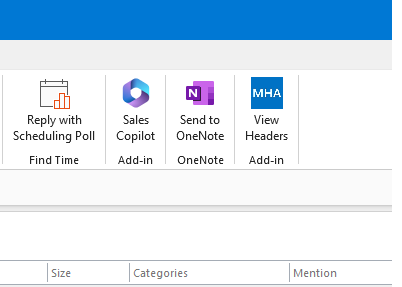
5.) After you finish setting it up, open Outlook and it will or should be in your ribbon like my graphic below

6.) Test it! Reply to an email and in that message, the Sales Pilot Add-In is in the message. Click on it and you will see “draft an email”

7.) Another box will be lower and you can type in something like “reply to Liz” and it will AI generate a response using keywords in the message you received.

8.) Then you will see generated text, click “add to email” and it will move to the body of the message you’re replying to

9.) Edit as needed

10.) Send

11.) Love the message? Make it a template!

12.) Before you send, click on the “templates” and add to you 365 templates.

If you need my help, please contact me below. Thanks!


Copilot for Microsoft Outlook

| January 5, 2024

Copilot for Microsoft Outlook

You’ve heard of Copilot and want to know if you can use the app in Outlook? So far, my testing says yes! I have been playing around with Microsoft Copilot for a few weeks, trying to figure out new things and I figured out the Outlook add-in. Here are some simple instructions to help you. I site my sources as well, from Microsoft. For this app, you do not need an enterprise license, just a 365 Exchange account.

1.) Close Outlook

2.) Click on this link https://learn.microsoft.com/en-us/microsoft-sales-copilot/install-sales-copilot

3.) Read this page so you can know more

4.) Then on that page, you will see this “Install Sales Copilot Outlook add-in from AppSource” about half way down, then “Sign in to Microsoft AppSource” 

5.) After you finish setting it up, open Outlook and it will or should be in your ribbon like my graphic below

6.) Test it! Reply to an email and in that message, the Sales Pilot Add-In is in the message. Click on it and you will see “draft an email”

7.) Another box will be lower and you can type in something like “reply to Liz” and it will AI generate a response using keywords in the message you received.

8.) Then you will see generated text, click “add to email” and it will move to the body of the message you’re replying to

9.) Edit as needed

10.) Send

11.) Love the message? Make it a template!

12.) Before you send, click on the “templates” and add to you 365 templates.

If you need my help, please contact me below. Thanks!


Core Services

| December 10, 2023

Clients who have worked with me for years know how fast and efficient I can be during our time together. Since many only call me every year or so when they have problems, things can change on their computers; such as a new computer, more data, new accounts and configurations can change. Starting now and in 2024, I will be using my new core services outline for all appointments. If you’d like my help solving problems and want me to support you in the future, it’s important we complete this list your first time you call. The core list won’t need to be done every time you call as we will have the notes.

When you book an appt, here is the list of services you receive: 

  1. Onboarding: I will review your computer, settings, configurations, Windows and Office updates, Microsoft accounts, issues you’re having and verify your backup. I will open a note pad on your computer to take notes. This can take 5-15 minutes depending on your issues. This is mandatory for all appointments.
  2. Game Plan: Once onboarding is completed, I will work on a game plan to complete your request. This will include options for you such as migrating your IMAP to Microsoft 365, or 3rd party apps you need to add/remove, options for backup if you don’t have any.
  3. Soft Quote: After the game plan is created, if you need more time than just one hour, I will give a soft quote. Some clients call with one issue and end up needing more work to reach their goals, this would possibly change my hourly rate or more time needed to complete.
  4. Start Work: I will start the work. Keep in mind some requests might take a couple of appointments due to downloading/uploading, synching, etc.
  5. Follow Up: Follow up is optional but most clients request it because once I’m done with your request, I tell you to use it for a day or so and create a list of questions, then I can cover it in the follow up appointment, usually the next day.
  6. Follow Up/AfterCare: During the follow up, I’ll answer questions or fix other minor issues still lingering. I also will discuss your backup now that your emails/data are configured correctly. For some it might be to set up Carbonite or Microsoft 365 backup options. We will also schedule a follow-up appointment if you’d like for 3-6 months ahead. I will also offer training for you if you need email management help or want training for your company.
  7. Close: You will also get an offer to buy another hour to use in 15 min increments for future help. As we just completed a request that was most likely a rework of your system, the next calls you might have are “quick questions” or fast repairs I can help with.