RSSCategory: Uncategorized

Blog 1: How to fix your own computer Series- Internet Connectivity

| August 26, 2013 | 0 Comments

I’m doing a series of blogs for my social media followers to keep handy, I even recommend you print these out! After all of these blogs are done, I am creating a PDF to download that has all of the information. Today’s blog is about internet connectivity and how to troubleshoot your own problems before calling your internet provider. Here are some simple instructions on how to troubleshoot your internet connection before calling century link or comcast

These simple steps usually work for my clients when they call in, it’s amazing what doing things in order can fix. The cable company usually does it backwards from what my clients have said. Try it, might work for you too!

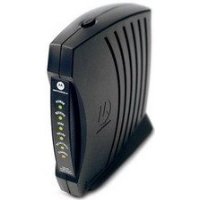
1.) Start with unplugging your modem power cord for one full minute. After one minute, plug back in and let the modem reset itself and see if all the blinking lights come back on. If you see any that are orange or amber and not green and blinking, you may have a modem issue. The internet company will need to “reset your modem” at this point. But let’s say everything is blinking ok, we will move on to the next step.

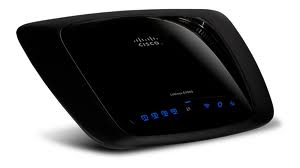
2.) After the modem is back to blinking lights, then go to your router power cord and unplug it for 10 seconds. After 10 seconds, plug back in and look for blinking lights. You should see the internet or Ethernet blinking for sure. If that’s good to go…we move on. If those lights are not blinking, then your router may need repairing or replacing. At that point, you can call us to help.

3.) Now you have reset your modem and router the right way, all lights are blinking ok…it’s time to restart your computer. Be sure to do a full restart/reboot so the computer gets a fresh connection to the internet. If you didn’t change anything with the computer settings, the internet should come back for you.

If these fail, call your internet provider and have your modem reset. If that fails, you might have a virus. Call us to help!

The Truth About Windows XP End of Life Apr 2014 and Information You Need to Know

| August 22, 2013 | 0 Comments

So we have all heard by now, by next spring Windows XP is not going to be supported and is finally at “end of life”. Does that mean your Windows XP computers will not work anymore or you can’t continue to you use it? No. You will be able to continue to user your Windows XP computer and reload it as long as you own a license key. So why the hype? The simple fact is that Windows XP updates and security features may or may not work (Well, will not work unless another company steps in and still does updates) and leave your computer susceptible to hackers, crashes and software glitches within the computer. Should you retire your old computer and get a new one? Maybe. Let’s discuss.
Some of you may have old software that works great with XP and not Vista, Windows 7 or Windows 8. I recommend you keep that computer going, but do not have it on the internet. Bring over information you need via a flash drive to continue using it. I know many of my clients have picture software they just love and hate to lose…so they should just transfer pictures now.

If you need your Windows XP computer still running on the internet, you should be sure you have great antivirus protection and keep it clean. I recommend our product of course because it’s great and we do offer tune-ups, so get them done every 6 months or so. The hackers will find ways to make this experience worse or maybe better for you. It’s been said that the hackers are focusing on new computers more, but overall….those darn toolbar junk software installs are happening to EVERY operating system Microsoft has out there. None are safe.


If you do not have old software and don’t really need the computer for anything, then it is recommended you purchase a new computer, it’s probably time anyway before the hardware fails on that old system. Get a new computer, get all new software and you will be in good shape for the next 5-7 years.

Let’s now talk about other technical things related…

Should you buy new office products? No, if you have at least Office 2007 or higher you should be ok. Office 2003 is very outdated while it should install fine on Windows 7 or Windows 8, you may have a snag or an issue with old updates or minor issues with printers, other software, etc. It is recommended you buy new software.

Office 2013. Somewhat of a learning curve here folks.  Well, it was for me in the beginning. Like all new things you love to hate, I have slowly become more interested and enjoying the Office 2013 products. They are not much like the old ones, all new interface, options and graphics. Most of the old options are there, but can you find them? I had to do a search mission to find some of my old favorite things I used, but overall…it’s your only choice so you might want to give yourself time to play around with the pretty buttons.
What about Windows 8, I heard it was like Vista, ish!

Yes and no. I think that Microsoft was a bit too “appy happy” with this release, but overall, if you take away all the “bling” and new stuff they give you, the computer runs like Windows 7 just fine. I can help you get these “appy” things figured out so your new computer is almost like what you had before, but it will not be like Windows XP at all, trust me on that one!

I think we will all miss the wonderful world of Windows XP, it was by far my favorite operating system and easiest to use, but times change, technology changes, and we change. If you are interested in having myself or my team help you buy a new computer, desktop or tower, move and transfer your data and help you set up printers, software, etc. Please call or email me 612-865-4475 Lisa@callthatgirl.biz

For even more information…

Ask Leo (one person on the internet I follow) put out a great article about it with a lot more answers. Ask Leo!

http://askleo.com/will-windows-xp-keep-working-after-support-ends/

Can you download Firefox without junk?

| August 8, 2013 | 0 Comments

Many times when people download software onto their computer they accidentally download software which may contain viruses or other malware or just be more junk to gum up their PC.  The people that place the links on the download page are often tricky about it so you’re never sure what you’re going to get. Here’s my experience with getting junk software while downloading Firefox.

Tonight I was wondering why Firefox wasn’t installed on my laptop so I went to download it. Unfortunately, (as I know better) I Google’d “Firefox” and clicked on the top ad. Dumb idea, I was sent to a pop up to download and wasn’t paying attention.

Here is the ad I clicked on (notice, not the Firefox real page)


Then I got this window…which includes JUNK…aka. AVG. I knew something was up here. This is why so many people are getting redirects and what not. You’re installing more software than you asked for. Be leary! I picked custom and then actually stopped the download and install.


If you have more questions about using Firefox, uninstalling unwanted software or another IT or business technology support issue you need help with please schedule an appointment with Call That Girl, today!

How to set up your iPhone or iPad with Hosted Exchange on GoDaddy

| August 7, 2013 | 0 Comments

Many of my clients who are signing up for the hosted exchange, are trying to set up their iPhones and Ipads, but get into some problems. The GoDaddy website has decent instructions, but mine are more realistic. These actually work for AppRiver and Microsoft’s Office 365 too.


From the Home screen, tap Settings.

  1. From the Settings menu, select Mail, Contacts, and Calendars.
  2. Tap Add Account.
  3. Tap Microsoft Exchange.
  4. Complete the following fields, and then click Next.
  • Email — Enter your Hosted Exchange email address.
  • Password
  • Description — Enter a description of the email address to display in the email account list on your iPhone.
  • Click “Next”

That’s all it should be to connect you with your exchange account. If you get taken to a screen asking for servers and such, start over. You should only need server information on an Android device.

How many Internet browsers do you need?

| August 1, 2013 | 0 Comments

Did you know that there are currently 5 major web browsers on the market? Most people know about Internet Explorer (IE) and maybe Chrome due to Google’s influence. But Opera, Safari and Firefox also have a large share of the market.

Really? Two? Three? Four? Five? Why do you need so many? I ask because almost all of my clients now use three browsers. Internet Explorer, Firefox and Chrome.  Back before Chrome, it was mostly IE and Firefox competing…they said “Use Firefox, it’s more secure and fast”…not anymore. Then came Chrome, they said the same thing “It’s more secure and faster”…not anymore. Might be faster, but it’s not so safe in regards to installing 3rd party software and I have found it allows more junky extensions and redirect pages than any other browser out there.

So back to my question, how many do you need? I need one. I’m a die hard Internet Explorer gal here. I do have three browsers on my computer for testing and Googling. But I could live with just one. And when I say I use one, I just use Internet Explorer, all day everyday. Sometimes when I am working with someone, they will say “It doesn’t work on my computer” and I say “What browser are you in”….yep, not every browser works the same on every computer, so yeah…I get it, why you need more than one. But for day to day, use just one is what I recommend.


Now the reason I am asking how many do you need or use is because of this…when a redirect toolbar gets loaded into a computer (usually downloaded by you unknowingly), it normally installs into all three browsers. I know to remove it from all three, but sometimes other things break while fixing this…such as flash. On occasion, one of the browsers just isn’t going to work the same as it did and on occasion I have to ask the client to just use one browser because I have put in time to fix one (that they don’t use often, and it keeps breaking, usually because they install more 3rd party software after I did a redirect removal believe it or not!).

My job sometimes never ends 🙂

If you have any questions or IT support needs don’t hesitate to contact Call That Girl today by scheduling an appointment here!


Meet the Resource Heroes Aug 20 Pool and Yacht Club, Lilydale

| July 26, 2013 | 0 Comments

New Business Minnesota Presents

Meet the Resource Heroes


Join New Business Minnesota at a reception and networking event honoring the Resource Heroes and their clients featured on the February cover. This informal gathering is a chance to meet business professionals who have made a significant difference in the success of their clients has proven to be one of our more popular events.

(Read Their Stories)

Aug. 20/ 4 to 7 p.m.

Pool and Yacht Club, Lilydale

Overlooking the Mississippi River.

FREE

REGISTER – RSVP at www.newstartupmeetup.com


Resource Heroes

 Lisa Hendrickson – Call That Girl Christopher Carriero, Guardian Applications LLC

Larry Greaves – APT Resources Clients – Jeremy Austrum and Shawn Kline, Next Generation Auto

Christine Pigsley – Dakota County Technical College Client – David Hartnett, Dunn Bros. Coffee Shop, Farmington.

Who should attend: Business professionals and owners who believe that the key to business success is building relationships and who know their next customer is one networking event away.   

RSVP at http://www.newstartupmeetup.com