Tag: Outlook Email Support

Why peeking in the Junk Mail or Spam folder is important

| May 23, 2012 | 0 Comments

Simple blog today folks.

I hear this on occasion, “I found your email in my junk folder,”  so I felt there was value to writing up a blog about the junk/spam folder. When I am remoted into a computer repairing Outlook, I usually have to do an email test to insure it’s sending/receiving and many times…my email doesn’t show up on the client’s computer. The same email is in my inbox, but when I reply, it’s in their junk folder. It wasn’t junk! It was a test email and that should not be flagged period. But it is. The subject line was just “test”.

We have two things to discuss.outlook-ad-300x130

  • Subject lines can get an email into junk
  • Any email can get into junk

These two things are important to remember and you might have important emails sitting in your junk folder. I check mine daily and find tons of little goodies sitting in there. Emails from colleagues, clients, my staff, it doesn’t matter…it finds its way there. A good reminder for you is to check your junk/spam folder on occasion and make sure you’re not missing an important email.


Microsoft Office 365 Consultant 2

Outlook vs. Gmail, Which One Should You Choose?

| March 6, 2012 | 0 Comments

In the past year, many people have moved to the popular Gmail and apps for running their email system. Some of these people completely got off using Outlook and moved to the web based Gmail and smartphone/iPad/tablet instead. Some continued to use Outlook for their email reader but used the Gmail servers. As an avid fan and knowledgeable troubleshooter of Outlook, I never feared everyone leaving Outlook for Gmail, but wondered how this Gmail would change business email.

This past week I have received three calls from clients asking to get back on Outlook and off of Gmail servers, too many glitches and issues. So needless to say, I was quite happy to hear that folks are coming back to Outlook and using their own servers for email again. YAY.

Here are a few factors to consider before switching over to Gmail if you are on the fence. (or just submit a request and have us help you)

If you are an average emailer and want a decent free email, Gmail is the way to go. I have to recommend it over yahoo, hotmail and other free email services. I see less hacking from Gmail and it does play nicely with Outlook for the most part. I will tell folks that it’s sometimes simple to set up Gmail in Outlook, sometimes not. Usually it is. Call us at 612-865-4475 if you are confused.

If you are in business for yourself and have your own website domain and email from a company such as Go Daddy, then staying on your own system is what I recommend. Outlook and Go Daddy play fairly well together and if you have two computers, I recommend getting IMAP, so you can have the two computers and Outlook synchronize. Go Daddy’s support is very good and fairly quick, so if you have an issue with your email, contacting them is a breeze.

If you are in business for yourself and want to use Gmail and other Google products, then most of my clients have a software company move all of their information to Google for them. Not many people do it themselves and we here at Call That Girl do not offer that service. Mostly because we are a Microsoft shop and support Microsoft products. Clash of the titans? Nah, I just don’t believe in everything being in the cloud. I really like that email can be stored offline and backed up locally.  I also like that many email accounts can be run in Outlook with different inboxes and managed separately. I don’t like Gmail folder structure either, but then again, I am old school Outlook and to get me to move will be very difficult, if never.

Don’t get me wrong, I am a fan of some Google products, like the calendar synch tool,  gtalk and their analytics, but that’s about it.  I have been troubleshooting Gmail for years and am quite knowledgable about the product, just not a fan of it. So if you are reading this blog and are on the fence yourself on what choice to make, feel free to comment below and I will try to help figure out your best course of action. Check out our website to find out more about our other areas of expertise!


Microsoft Office 365 Consultant 2

Things That You Should Know About Outlook That Microsoft Doesn’t Tell You

| September 14, 2011 | 0 Comments

Welcome to my Outlook FYI series of blogs. We will be covering these topics in a series as there is just way too much information to handle in one blog. I felt that these FYI’s were important to discuss because so many people use Outlook every day, for so many things. And Outlook is just not for email anymore. I also apologize, there are no “How to” in my blogs, just FYI’s. This blog will just explain things hopefully better for you to understand.

Many of us use Outlook in our everyday computing needs. It’s a wonderful tool, but very misunderstood by the common user. And maybe by some not so common people. Many of us are really married to it and I am all for it because it’s been my favorite software program since 2000, but it can be tricky and problematic.

Last weekend one of my clients took a computer to a “big box” place to buy a new computer and in a panic, had them do a data back up from his old computer to get the files quickly. When he got his computer back, he asked many times about the Outlook files and they told him, “We couldn’t get those files, they were corrupted”. He panics and comes back to us, where we find his files in no time flat. Why is that? Because we know where Microsoft hides the PST files, their technician must not have known. Years of data, calendar appointments, tasks, contacts, emails, archives…all could have been gone in one fast “Nope” type answer. Let me explain…

By default, when you set up Outlook for the first time, it creates what is called a PST (personal storage). You usually complete a set up wizard, fill in all of your email account information and happy days, email is back and running again! Email is working fine, but…Houston, we have a problem.

Again by default, the Outlook PST file on older computers that have XP and Windows Vista are set up in a hidden folder (not in Windows 7, it’s in the Documents folder now), way deep in some folders that are not shown by default. Windows says “click here to show hidden files” the average person would never think of going to find. Nor do they really make it easy to find unless you know how to navigate around the Outlook properties and settings. To be honest, very few of my clients know where this file is or know it exists.

So you may ask, why should you need to know where that PST is? Because it stores everything you do in Outlook. If you are using Pop3 for email, that’s where your email probably is being downloaded.  Using the calendar? That’s where your calendar is. Contacts, Tasks, Auto-fill name, archive files….Yep, all there and hidden. And please never assume your emails are being kept on your server because that is not the truth in many cases either.  (That will be our topic next Wednesday though, email).

I think of Outlook like this, it’s like buying a house but you don’t know where the furnace is. You know you have heat and can manage the thermostat…but don’t know where the furnace really is. Could you imagine that? Buying a house with no furnace, then one day you notice something is wrong and you can’t find the furnace at all. But you Google it and find the house builders buried your furnace underneath your basement. That is what Microsoft does with your default PST, hides it under the basement pretty much. And when you find the furnace, let’s say you can’t get it out of the basement because the house builders never told you how to get in and find it nor do they allow you to just open that basement door and see your furnace. You can see the outside of it, but you can’t see the pilot light to know its running. Your PST is in those deep hidden folders and you can’t just double click them to open them. You must open them through two or three special ways and the common person, again…doesn’t know how to do this. (I hope I didn’t lose you on the furnance comparison, but it’s the only thing that I could think of this am!)

Whenever I am remoted into a client’s machine and they are missing an archive folder, I go and find it open it. Most times I get this, “How did you do that”. Such a mystery that Microsoft really didn’t need to do to people.

To close, today’s topic of the infamous Outlook PST file was a just a start of my series of Outlook blogs. I will try to keep up with these every Wed and will continue to post in this blog, so favorite it and come back next week! Please share with your friends on LinkedIn, Facebook, Twitter, Newsletters, etc. If you or a loved one are in a need of an Outlook intervention (haha), or just need assistance, I am the Outlook gal here at Call That Girl and I know it well. Let me help you and quickly!

When your Outlook is not playing well… Googling repairs is fine and I recommend you do that to learn, but when it comes to actually repairing it, call us first. I can help you get back to work fast. To book an appointment to see if you are backing up your PST, click on the monitor below.

Upcoming topics

  • Emails-leaving copies on the server
  • When emails get stuck in your outbox
  • backing up your PST
  • PST Size problems, why Outlook can crash you out
  • How to open up your archive folders
  • More hidden folders!
  • Why the IMAP option may be better for you (if you have 2 or mor computers)
  • Outlook Google Calendar Sync
  • Tips for exporting your contacts into social media

 

Microsoft Office 365 Consultant 2

Living on the edge of your inbox

| July 21, 2010 | 1 Comment

I wake up everyday and first thing I do is check my Blackberry to review what email I got over night. I know it’s an addiction at this point, so you don’t need to tell me that. I am aware of it. If they had a Blackberry anonymous group, I would probably go!

Lately though, I have noticed how much email I have been getting a day and realized that I needed to start getting it under control. It was at around 150! And since I am running a business, I would spend each evening organizing and replying to all of these emails. Very exhausting. The idea of starting to  use rules and subfolders for my email is something that a professional organizer would probably want to do for me, so I stepped up and started doing it myself.

Here is what I have been doing, and it’s a process. You have to do it almost everyday to make it work. I have noticed results and it’s getting better. I woke up to 2 emails today instead of 20.

First let’s start with this.

Today, only answer the important emails. The business critical ones, the ones that really need to be answered. Let the rest go, do not move them or delete them or anything. Just let them sit.

Tomorrow morning will be when the work starts. If you are like me, you probably wake up to 20 emails, mostly all the newsletters and updates you have subscribed to.  I got to the point, it was annoying and wanted them gone. Just sick of them and needed them organized or to not come to me anymore.

Tomorrow am: Open each email with a directive thought. Here are a few examples of my emails.

  1. Things I must do NOW
  2. Things I must do later
  3. General FYI, but I need to keep the info
  4. Newsletters
  5. Special Projects
  6. Etc

Next, create a subfolder in your email program to reflect these needs. Then move all of those emails to those folders with the exception of the newsletters.

Once your email is organized a bit, then attack the newsletters. I started unsubscribing from newsletters that I didn’t want anymore and then created a rule for ALL newsletters to go to. I want to read them, just not today. I prefer to read through them on weekends when I have time. So now I know where those are. My email inbox is now pretty clean and in just 3 days, I have already noticed a big change! I love it!

I am by far not a professional organizer, but this was pretty easy for me to get going with, took a few minutes a day and well worth it. Trust me, I had the feeling of living on the edge of my inbox and now I’m not feeling it so much. Yes, I’m still addicted to the Blackberry and yes, I still check emails every morning, but now I feel better I don’t have to clean up so many emails when I get on the computer.

whew!


outlook-ad-300x130

Microsoft Office 365 Consultant 2

Auto-fill….Friend or Foe?

| June 29, 2010 | 0 Comments

Now that some time has passed, I think I can tell this story without feeling that the person I am speaking about will read this and figure out it’s them I am speaking of. This story could be anyone, in any town, in any state. But because it happened in my town, where I network, and where I work, I had to let time go before telling this great story of how auto-fill let me in on a little secret. (What is auto-fill you may ask? It’s the little tool in your email that remembers all the people you have emailed, it “fills in” in their email address once you start typing it in).

Once upon a time an account executive from a Minneapolis business tried to get CTG to become a referring partner. They found me on LinkedIn, told me they LOVED my business and asked me out for coffee, I refused of course because I don’t do coffee dates anymore.  They persisted and offered to come to my office if I would have a few minutes. Ok, I can do that for a fan (and I sometimes accept if someone will come to my office for a few minutes to pitch something that I may need). During our meeting, we discussed an upcoming instrustry change and maybe becoming friends outside of work “we get a long so great, we should hang out!” type of conversations began. Hey I’m a social person and I love making new friends, so I said yes to happy hour and yes to making a new friend. Then the day of our get together they cancelled. Not a big deal. Then they cancelled again. I was starting to get irritated and wondered what happened.  Then started the fun emails, more chat about the industry changes coming up, calls to keep me on the line, etc. Never met again in person. But what I did notice was this person had slowly received information out of me that I had good insight on in the industry and like a friend…I trusted them with it.

Moving ahead, they slowly lost contact with me after I shared most of the good industry tips I had. Then one day, I got an interesting email that was sent to their entire sales team and I was listed as a sales team member. Wrong Lisa I guess (thus my reference to Auto-fill). I read the whole sales pitch/proposal and found a lot of my “good tip’s” from this executive in the email giving out to their team all of the things I told them. Now, none of these were secrets by any means, all public knowledge, but for us in the industry, it was information that not a lot of folks knew about back then.

Was I ticked off? Yes. I wrote that person back and said, “You didn’t get it ALL accurate” LOL! I am quite sure that they about shit their pants when they noticed I was cc’d because I can tell you this much, I should not have been copied on that email. I still crack up thinking about it. Never heard back from that person ever again.  There are a lot of lessons to this story and the one I want to remind you of is remembering the auto fill feature when sending out emails (double check names! Auto-fill is so easy to just grab the first “Lisa” on the list), there are some other lessons here but I’ll let you figure those out for yourself.

Happy Monday!

Lisa


outlook-ad-300x130

Microsoft Office 365 Consultant 2

Call That Girl’s guide to buying a laptop

| August 6, 2009 | 0 Comments

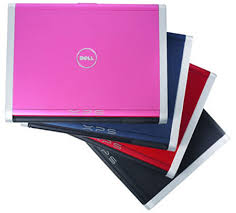
dell laptopsI get many folks asking me what laptop they should buy, which one is the best, etc. All models of computers/laptops end up in my shop, so they all break at some point. My opinion? Follow these simple rules and you just bought the best laptop!

1.) Figure out a budget. Remember that with a new computer, you may need to buy new software. And for those that want help setting it up, we quote 2-3 hours to get everything installed and configured.

2.) Make sure you buy a laptop in person. Buying online gives you no sense of how the computer feels, weighs or views in bad/good/extra light. If you buy online, be sure to buy from a reputable company that you know you can return items too easily.

3.)  If you go to a store (Microcenter still has Windows 7!), here are some tips!

  • Keyboard. Play with the keys and make sure you can type ok and see the keys. Some laptops today have a awkward calculator on the keyboard now, making me “off center” so if you use your laptop keyboard like I do, the calculator makes it hard to work with.
  • Weight. Pick up the laptop and make sure you can carry it without problems. Many folks end up buying 10 ton weight laptops and they are very hard to carry around.
  • Screen. Check out the screen and make sure there is not too much glare. If you plan on working outside, many screens have too much glare and you can’t read the screen in natural light, even too much overhead light can be bothersome.
  • Screen width. Many folks hate the wider screens. It is not an issue for me, but for those with the regular monitors, it’s quite a change. Test opening some stuff on the computer and make sure you like how it looks.
  • Memory. Try to get 6-8 gigs of RAM if you can. I happen to have a decent Dell Latitude that only has 4 gigs, but it is not my main workhorse computer.

4.) Pricing

A good work laptop is approximately $500-$900. You will pay more for higher quality (SONY) and of course for a faster processor, solid state hard drive and more options (longer battery life, docking station, etc.)

Many folks also ask about the processors and hard drive space, etc…my answer is you’ll be ok probably if you can find a computer that fits your needs with the list I gave you. Those are much more important. Most computers today come with plenty of hard drive space.

Happy Thursday!

Lisa


Microsoft Office 365 Consultant 2