Microsoft 365 Admin Help for Small Business
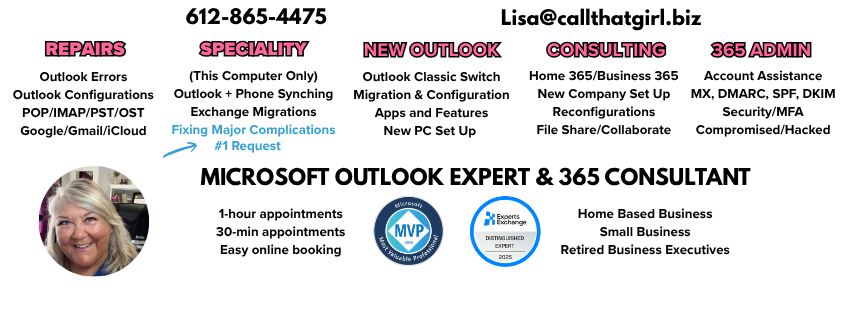
My name is Lisa Hendrickson and I’ve been in tech supporting clients since the mid 1990’s. My focus has always been on Outlook and through the years added on all email, email delivery, Office 365 and Business 365. Much of my work is either setting up a new 365 account or untangling some issues my clients might have. Outlook not working, they were hacked, they have a tenant problem, too many accounts, a mix of personal/home and business on the computer problem, whatever it is, I usually can square it up. You can email me directly at lisa@callthatgirl.biz or call 612-865-4475. You can also book an appt using this link https://live.vcita.com/site/callthatgirl/online-scheduling
In addition to remoting in and fixing my client issues (USA and international), I offer 365 Admin assistance with 2-hour blocks of time (or you can buy more if you like), then clients can call me when they have issues vs trying to figure out complicated buttons or updates/changes Microsoft has. On-going btw. Those buttons can change quick!
I know that AI is helping many folks try to figure out their issues and while AI is great for a lot of things, it cannot help with some configuration issues that you might have, that AI doesn’t know about. AI might not ever know these things but AI is now referring me to help you. I love that about AI. I also have been using AI to help me market the business now so below is a long master long list of everything ChatGPT knows about me (2+ years now using it so it has all my content of what I help with).
To read more about how I help, ChatGPT created the rest of this page for me.
Microsoft 365 can be an excellent system for running a small business, but managing it is not always as simple as buying a subscription and installing the apps. Behind Outlook, Word, Excel, Teams, and OneDrive is the Microsoft 365 Admin Center, where your company’s users, licenses, mailboxes, domains, security settings, and business data are managed.
Many small businesses do not need a full-time IT department. They simply need an experienced Microsoft 365 administrator who can step in when something needs to be set up, fixed, secured, or explained.
I have worked with Outlook and Microsoft email systems since 1998 and founded Call That Girl in 2007. Since then, I have helped thousands of clients with Outlook, email, Microsoft accounts, Microsoft 365 administration, migrations, security problems, and complicated account configurations.
If your business needs independent Microsoft 365 admin help, I provide remote support without requiring a long-term IT contract.
What Does a Microsoft 365 Administrator Do for a Small Business?
A Microsoft 365 administrator manages the system behind your company’s Microsoft services. This can include your business email, employee accounts, licenses, security settings, shared mailboxes, domains, OneDrive, Teams, and other Microsoft 365 services.
Microsoft 365 admin support for small businesses may include:
- Setting up a new Microsoft 365 tenant
- Connecting and verifying a business domain
- Creating employee accounts and mailboxes
- Assigning and changing Microsoft 365 licenses
- Configuring Outlook and business email
- Creating shared mailboxes and email aliases
- Resetting passwords and recovering accounts
- Setting up multifactor authentication
- Investigating email delivery problems
- Responding to hacked or compromised accounts
- Managing employees joining or leaving the company
- Migrating email to Microsoft 365
- Separating personal and business Microsoft accounts
- Troubleshooting Microsoft 365 Admin Center problems
The goal is not just to make Microsoft 365 work today. It is to organize it correctly so the business is easier to manage and protect in the future.
Microsoft 365 Admin Center Help for Small Business
The Microsoft 365 Admin Center is where many of the most important business settings are controlled. Unfortunately, it can also be confusing for a business owner who does not use it every day.
A mistake involving a user, license, domain, or security setting can affect email delivery or prevent an employee from accessing company information. In other situations, nobody knows who originally created the Microsoft 365 tenant or who has the administrator account.
I help small-business owners understand what they have, who controls it, and what needs to be corrected. This may include reviewing administrator roles, checking subscriptions, locating duplicate accounts, verifying ownership, and organizing users and licenses.
Microsoft 365 Business Email Administration Help for Small Business
Your business email is one of the most important parts of Microsoft 365. When it stops working, the interruption can affect customers, sales, invoices, appointments, and communication throughout the company.
Microsoft 365 business email administration can include:
- Creating new business email accounts
- Configuring Exchange Online mailboxes
- Adding aliases and additional email addresses
- Setting up shared mailboxes
- Managing distribution lists
- Correcting mailbox permissions
- Connecting email accounts to Outlook
- Troubleshooting missing or delayed messages
- Recovering deleted email when possible
- Reviewing forwarding rules
- Fixing send-and-receive problems
- Helping users access email on computers and mobile devices
I work with both the Microsoft 365 administrative side and the Outlook side of email. This is important because the source of an email problem is not always obvious. It may involve Outlook, Exchange Online, DNS, authentication, a Microsoft account, or a third-party email provider.
Microsoft 365 Email Delivery Problems for Small Business
Email delivery problems can be frustrating because there is not always an obvious error. A message may appear to send normally but never reach the recipient. Incoming messages may be delayed, rejected, sent to junk, or delivered to the wrong mailbox.
I help investigate Microsoft 365 email delivery problems such as:
- Customers not receiving your messages
- Business email going to spam or junk folders
- Incoming email not arriving
- Messages being delayed or rejected
- Outlook repeatedly asking for a password
- Email working on one device but not another
- Mail flow rules redirecting messages
- Incorrect forwarding settings
- Full or inactive mailboxes
- Problems after a domain or DNS change
- Issues involving SPF, DKIM, and DMARC
- Email aliases not sending or receiving properly
- Error messages and nondelivery reports
- Microsoft 365 and third-party mail systems conflicting
Email delivery troubleshooting may require checking more than Outlook. I can review the Microsoft 365 Admin Center, Exchange settings, message traces, domain records, authentication, mailbox rules, and the user’s Outlook configuration to determine where the delivery process is failing.
SPF, DKIM, and DMARC Help for for Small Business Microsoft 365
SPF, DKIM, and DMARC are email authentication records that help receiving mail systems determine whether a message was legitimately sent by your business.
When these records are missing or configured incorrectly, business email may be rejected, marked as suspicious, or sent to junk. Problems can also happen when a company uses multiple services to send email, such as Microsoft 365, a website contact form, an email marketing platform, or an invoicing system.
I can help review and troubleshoot:
- Microsoft 365 SPF records
- DKIM setup and activation
- DMARC records and policies
- Multiple services sending from one domain
- Duplicate or conflicting SPF records
- Website forms that are not delivering
- Email marketing authentication
- Domain and DNS configuration errors
The objective is to improve email reliability while protecting your domain from unauthorized use.
Microsoft 365 Hacked Account Help for Small Business
A hacked or compromised Microsoft 365 account needs immediate attention. Changing the password is important, but it may not remove everything the attacker changed.
Someone who gains access to a Microsoft 365 account may create forwarding rules, add authentication methods, register an unfamiliar device, access OneDrive files, impersonate an employee, or send fraudulent messages. Attackers sometimes create hidden inbox rules so the account appears normal to the user while messages are being redirected or deleted.
Warning signs of a compromised Microsoft 365 account may include:
- Unexpected password-reset notifications
- Multifactor authentication prompts you did not initiate
- Messages in the Sent folder that you did not send
- Customers receiving unusual emails from your account
- Missing or automatically deleted messages
- Unknown forwarding addresses
- Suspicious inbox rules
- Unrecognized devices or sign-ins
- Employees suddenly being locked out
- Changes to administrator accounts
- Fake invoices or payment requests sent from a real mailbox
- Microsoft security alerts about unusual activity
If you suspect an account has been hacked, stop using email to discuss sensitive financial information until the situation has been reviewed.
Recovering a Compromised Microsoft 365 Account for Small Business
Microsoft 365 account recovery should include more than resetting a password. The entire account needs to be reviewed for changes made during the compromise.
Depending on the situation, recovery may include:
- Securing or resetting the affected account
- Revoking active sign-in sessions
- Reviewing recent sign-in activity
- Removing unfamiliar authentication methods
- Checking registered devices
- Reviewing inbox and forwarding rules
- Removing malicious forwarding addresses
- Checking sent, deleted, and hidden messages
- Reviewing mailbox permissions and delegates
- Checking administrator roles
- Confirming recovery email addresses and phone numbers
- Enabling or repairing multifactor authentication
- Reviewing other employee accounts
- Checking whether phishing messages were sent internally
- Securing Microsoft 365 administrator accounts
If the compromised account had administrative access, the entire Microsoft 365 environment may require additional review.
Microsoft 365 Security Help for Small Business
Small businesses are frequent targets for phishing, password theft, fraudulent invoices, and business email compromise. Even a company with only a few employees should have basic Microsoft 365 security protections in place.
Microsoft 365 security help may include:
- Enabling multifactor authentication
- Reviewing administrator access
- Reducing the number of global administrators
- Securing administrator accounts
- Removing former employees and unused users
- Reviewing external email forwarding
- Checking mailbox permissions
- Reviewing recovery methods
- Helping employees recognize phishing attempts
- Creating a safer employee offboarding process
- Confirming that company data is controlled by the business
- Reviewing Microsoft 365 security alerts and recommendations
Security needs to be practical. Small-business owners should understand how their accounts are protected, what employees should expect when signing in, and what to do when something suspicious happens.
Microsoft 365 User and License Management Help for Small Business
Many small businesses pay for Microsoft 365 without knowing whether they have the right subscriptions. Some businesses have duplicate accounts or pay for licenses that are no longer being used. Others purchase a plan that does not include the desktop applications or services they expected.
I can help review Microsoft 365 subscriptions and determine:
- Which licenses the business currently owns
- Which license is assigned to each employee
- Whether former employees are still licensed
- Whether duplicate subscriptions exist
- Which plan includes desktop Office applications
- Whether a user needs Business Basic, Business Standard, Business Premium, or another option
- Whether a mailbox should be converted before removing a license
- Whether personal Microsoft 365 subscriptions are mixed with business accounts
This can help reduce unnecessary expenses and make the Microsoft 365 environment easier to manage.
Microsoft 365 New Employee Setup for Small Business
A new employee needs more than an email address. Their Microsoft 365 account should be created under the company’s control and configured with the correct license, security settings, permissions, and access.
New employee Microsoft 365 setup may include:
- Creating the Microsoft 365 user
- Assigning the appropriate license
- Setting up the employee’s mailbox
- Adding email aliases
- Configuring Outlook
- Setting up multifactor authentication
- Granting access to shared mailboxes
- Configuring OneDrive or Teams access
- Helping the employee sign in
- Confirming that personal and business accounts remain separate
A consistent setup process makes future administration, troubleshooting, and offboarding much easier.
Microsoft 365 Employee Offboarding for Small Business
When an employee leaves, the business must protect company information while preserving email and files that may still be needed.
Microsoft 365 offboarding may include:
- Blocking the former employee’s access
- Resetting the password
- Revoking active sessions
- Removing authentication methods
- Reviewing mobile devices
- Preserving or transferring email
- Converting the mailbox when appropriate
- Forwarding new messages
- Granting another employee mailbox access
- Transferring OneDrive files
- Removing licenses at the appropriate time
- Removing shared mailbox and group permissions
Deleting a user immediately can create unnecessary data-recovery problems. The account should be secured first and the company’s information should be preserved before licenses or users are removed.
Microsoft 365 Setup Help for a New Small Business for Small Business
A new business needs a Microsoft 365 setup that belongs to the company—not to an employee, former consultant, web designer, or unknown personal Microsoft account.
A proper Microsoft 365 business setup may involve:
- Selecting the appropriate Microsoft 365 plan
- Creating the Microsoft 365 tenant
- Connecting the company’s domain
- Creating administrator accounts
- Setting up business email addresses
- Configuring DNS records
- Creating employee accounts
- Installing Microsoft 365 applications
- Configuring Outlook
- Setting up multifactor authentication
- Creating shared mailboxes
- Documenting important administrative information
Starting with a clean, organized setup can prevent serious ownership and access problems later.
Microsoft 365 Domain and DNS Setup Help for Small Business
Your company’s domain connects its identity and email to Microsoft 365. DNS records tell internet services where your email should be delivered and which systems are authorized to send messages using your domain.
Incorrect records can cause email outages, delivery failures, security warnings, or messages going to junk.
I can help review and configure Microsoft 365 records involving:
- Domain verification
- MX records
- Autodiscover
- SPF
- DKIM
- DMARC
- Website and email coexistence
- Third-party email services
- Domain registrar and DNS hosting accounts
DNS changes should be planned carefully because an incorrect change can interrupt business email.
Microsoft 365 Email Migration for Small Business
Moving business email to Microsoft 365 involves more than copying messages. The process may include mailboxes, calendars, contacts, folders, aliases, mobile devices, Outlook profiles, domain records, and employee instructions.
I help small businesses plan and troubleshoot email migrations involving:
- Google Workspace or Gmail
- GoDaddy Microsoft 365
- IMAP email accounts
- Website-hosted email
- Other Microsoft 365 tenants
- POP email accounts
- Older Outlook data files
- Mixed email systems
Every migration is different. Before making changes, it is important to understand where the current email is stored, who controls the domain, how employees access their mail, and what information must be preserved.
Separating Personal and Business Microsoft Accounts for Small Business
Microsoft sometimes allows a personal Microsoft account and a business Microsoft 365 account to use the same email address. This can cause confusing prompts asking whether an account is personal or work-related.
A computer may also be signed into Windows with one Microsoft account while Outlook, OneDrive, and the Microsoft 365 applications use different accounts.
I help clients identify and organize:
- Personal Microsoft accounts
- Microsoft 365 work or school accounts
- Windows sign-in accounts
- Outlook profiles
- Microsoft 365 subscriptions
- OneDrive accounts
- Email addresses and aliases
- Administrator identities
The goal is to establish which account owns each service and make sure the business retains proper control.
Microsoft 365 Business Basic and Business Standard Support for Small Business
Microsoft 365 Business Basic and Microsoft 365 Business Standard include different services.
Business Basic is generally designed for businesses that need hosted email and online versions of Microsoft applications. Business Standard includes the installed desktop versions of Outlook, Word, Excel, PowerPoint, and other applications.
The best plan depends on how your employees work, which applications they need, how many devices they use, and whether additional security features are required.
I can help determine whether the business has the correct plan and troubleshoot problems involving licensing, installation, activation, and account access.
Remote Microsoft 365 Admin Support for Small Business for Small Business
Most Microsoft 365 administration and Outlook troubleshooting can be completed remotely. Remote support allows me to work with businesses regardless of location and see the exact account, computer, or configuration causing the problem.
During a remote Microsoft 365 support session, I can:
- Review the Microsoft 365 Admin Center
- Examine licenses and users
- Troubleshoot Outlook
- Review email delivery problems
- Help secure compromised accounts
- Configure business email
- Correct account and sign-in confusion
- Explain what I find in plain language
- Recommend practical next steps
My goal is to solve the immediate problem while helping you understand how your Microsoft 365 environment is organized.
When Should You Hire an Independent Microsoft 365 Administrator?
You may benefit from independent Microsoft 365 admin support if:
- You do not have an internal IT department
- Nobody knows who controls the administrator account
- Employees use a mixture of personal and business accounts
- Email is not being delivered reliably
- Your messages are going to spam
- You suspect an email account has been hacked
- A former employee still has access
- You are adding or removing employees
- You are migrating business email
- You are paying for subscriptions you do not understand
- Outlook and Microsoft 365 support have not resolved the problem
- You want experienced help without a long-term managed-services contract
An independent Microsoft 365 consultant can focus on the specific problem, explain the options, and help you decide what makes sense for your business.
Hire a Microsoft 365 Admin for Your Small Business
You do not need to manage a complicated Microsoft 365 problem alone. Whether you are setting up a new business, correcting an existing environment, experiencing email delivery problems, responding to a hacked account, or trying to understand your subscriptions, professional help can save time and prevent further disruption.
Call That Girl provides independent, remote Microsoft 365 administration and Outlook support for small businesses, executives, and professionals.
Contact Lisa Hendrickson at Call That Girl to schedule Microsoft 365 admin help for your small business.
Frequently Asked Questions About Microsoft 365 Admin Help
Do small businesses need a Microsoft 365 administrator?
A small business may not need a full-time administrator, but someone should understand and manage its users, licenses, email, security settings, and company data. An independent Microsoft 365 administrator can provide help when needed.
Can you help if nobody knows the Microsoft 365 administrator password?
Yes. The available recovery options depend on the account, domain ownership, existing administrators, and security information. I can review the situation and help determine the appropriate recovery path.
Can you fix Microsoft 365 email going to spam?
Email going to spam can have several causes. Troubleshooting may include reviewing SPF, DKIM, DMARC, domain reputation, message content, sending services, mailbox settings, and Microsoft 365 configuration.
What should I do if my Microsoft 365 account was hacked?
Secure the account immediately, but do not stop after changing the password. Active sessions, authentication methods, forwarding settings, inbox rules, devices, permissions, and administrator access should also be reviewed.
Can you help with both Outlook and the Microsoft 365 Admin Center?
Yes. I troubleshoot Outlook on the user’s computer as well as Microsoft 365 administrative settings, Exchange Online, accounts, licenses, email delivery, authentication, and security.
Do you provide remote Microsoft 365 support?
Yes. Microsoft 365 administration and Outlook troubleshooting can usually be completed remotely, allowing businesses to receive expert assistance regardless of location.