Research and Analysis for SEO Blogs for IT Business Owners
If you are new to the SEO and Marketing tips series, you might want to read the first blog. It’s at the bottom of this page, tip 2 is below this one.
Tip #4
Before you start blogging, you should do a few things. Prepare and do analysis. I learned this early in 2012 when I started doing my own SEO. If you don’t do this, you have no starting ground and have no idea where you rank already. One of my SEO clients told me that the competition check I did for them, opened their eyes to a service their competition was doing and they were not aware of!
I’ll start with this fun exercise, open an Excel spreadsheet and open a Google window, do not be logged into your Gmail account while doing this.
Now, write out 10-20 of your services. Example: Computer Repair, Data Backup, Data Recovery, etc. Then search in Google that service + your town, or your community. Example: “Computer Repair Minneapolis”. Review the search pages and copy the URL into your spreadsheet for at least the first 10 searches. My first analysis included about 3 pages or so listings. I guess you could say I was a maniac but I really wanted to learn more about each of the businesses I was competing with too. Minneapolis was a large market and go get on page 1 would be an effort to say the least.
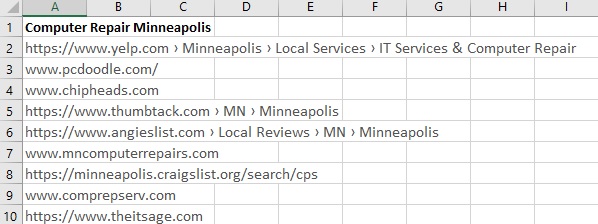
Continue doing this until you have a spreadsheet full of your search words and the URL listings of your competition. Take note of the graphic above and all the major non-IT companies who are ranking on page 1. This is pretty sad to see, but you can outrank them in time. In all the years I have been doing my own SEO and SEO for others, getting ahead of them is possible, but takes time and lots of blogs.
TIP! If you want to really get into the analysis, copy the title they used too. This is great learning for when you make your blogs, covered in another tip!
Now review those URL’s. Go see what the competition is doing, look at their website, review their navigation bar. Review their website, take notes. Also review all the search words you have and see how many of those companies are using the search words you want to do. This is your edge, find search words you want and they are not ranking for. I also try to tell my clients to focus on their most expensive services; data recovery, mac repairs, Office 365.
TIP: searching for MSP and managed services are not great search words, mostly because the general public does not know these words. They know “IT Consulting” or “Technology services” and such.
I will close this tip with asking if you have Google Analytics setup for your website. If not, you can setup an account here https://analytics.google.com
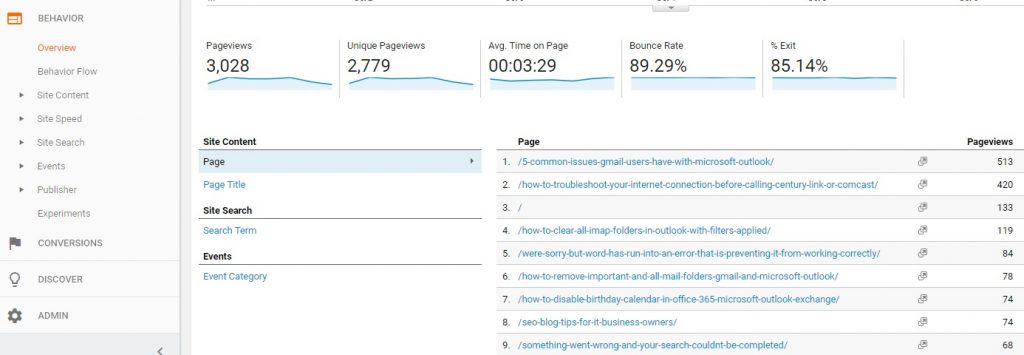
If you do have Google Analytic setup, go check your statistics. Export the past month of the “Behavior-Overview” to an Excel spreadsheet. Now you can see all of your blogs and pages and how many clicks they have. For deeper analysis go back a year. As you can see in my graphic below, I have many SEO/Error blogs. These help me with in-bound marketing for clients to find me. This is not what you should be doing now, I will cover SEO/Error blogging in a tip later on.
To close this tip up, do your homework, have fun and if you are new to the tips, be sure to read the tips below! If you want to hire me to help you, check out my seo and marketing help page here https://callthatgirl.biz/marketing-help-for-small-businesses
Tip #3
The biggest and probably best of all the blogs to come. Now that you’ve read the first two blogs we can get down to the real work! Ah but I will let you know, the SEO secrets are way down the line, so if you’re hoping to skip right to that, you have to wait a few blogs. You need to learn a bit about blogging first.
Do you have a website for your company? Yes? Is it on WordPress? If Yes, you are good to go to keep reading. No? You’re on a different platform? Read this anyway and you might be able to do the blogs form your Joomla or Magento, etc. Whatever you have might have a blogging add-in and the techniques for SEO might work. The blogs will work I hope for other things, newsletters, social media, etc. But I have found the SEO Blogging I do, does well with WordPress.
If you have a great site and can’t use the blogging, then you can buy a domain, (do your domain.net) and install WordPress and try to style and design it to look like your other site, but keep it very simple! The .net domain can simple because it will only be for blogging and to get you found on the internet.
Now you have a blog. Are you blogging? Do you know what to blog about? For me, I do blogging in many ways. I do SEO Blogging of course, this is exact blogs to help me get found on the internet. People search and find what my blog is and then decide to call and hire me. I also do error blogging. When I fix an error, I blog it and then technicians or end users find the error and it’s either helpful or they call me to hire me to help. I hope the latter! I also do just day to day blogging. These blogs can be stories or just interesting things, I have a few goodies out now, mostly GoDaddy blogs, not really pitches to hire me but more like a warning to readers. These of course can be found by searching the internet too. Finally, I do sometimes create the bait click blogs. I’m not talking about Fake News but more like “5 ways to stop a scammer in their tracks” or “4 ways to know you’re getting a call from a scammer.”
Blogs are the most wonderful outlet for content marketing I have ever seen. Of course, it’s all I have ever known too. As you read in tip 1 and 2, I was always into doing marketing myself and blogs were my marketing. I use them in many areas.
If you happen to have blog setup and do blogging now, how consistent are you? Do you have “Blog” listed on your navigation menu on your website? Have you hired a blogging service?
Let’s start with what you might be doing wrong. Since I started helping techs with their SEO this past summer, I have found a mish/mash of good and bad blogs. Some folks hire a service to do a blog, some subscribe to newsletters and use that as a blog, but if you’re not getting the blog out to the public via SEO or social media…what’s the point? I also have an issue with techs who put the blog link on the nav bar and have old blogs or nothing there. I learned from Bryce Whitty from Technibble the value of your “above the fold”, which means basically what people see at the top half of the website. If you look at the top of this blog, all I have is a huge banner and my nav bar, which is very simple. No link to blog. My blogs are too informative for a new person finding me to drift off to never never land. Plus, most of my clients found me via a blog and I don’t want them cruising through my all my weird blogs lol. I laugh because my blogs are not all “informative”.
Let’s say you are blogging pretty good from your own writing or subscribing to a service, a few times a week or a month and your Google Analytics show you are getting a decent amount of traffic from the blogs. Have you been tracking if those are converting to any calls or contact forms submitted? Do you have a contact us form or call to action on the blogs? If not, consider doing that right now. I recall my first out of state call back in 2012 for an Outlook repair issue. I will never forget asking the client “how did you find me” and they said through one of your blogs. And that folks is when the magic started. I had been blogging about Outlook for years. In fact, I had such passion for it, the right market (LinkedIn) and I shared those blogs with my newsletters and LinkedIn groups, it started to make sense. During 2012, I was lucky to have a rock star marketing assistant and we created so many blogs for all the marketing.
It was that year that I also figured out SEO blogging. I had stores then and wanted to compete with “Minneapolis computer repair” searches. I was on page 6. That’s horrible! For six months I spent many nights working on the analytics, competition checking and worked on the blogs with my assistant. I had a huge spreadsheet we shared and worked on the blogs. I got to page one, took a while and many nights working them over, but to this day…I still rank in Google, even though I closed my stores in 2013 and stopped all blogging on that topic. You can see by my graphic below that the blog that still ranks was probably one of the last ones I did before I started focusing only on Outlook.

Ok folks, that’s enough for this blog. I have many more to go. Your homework from this blog is to figure out if you are blogging, if you need to to do the domain.net bog (your name just .net and install WordPress) or remove that nav bar, review your analytics, so much to do, you have a week! And read tips 1 and 2 below.
Next week I will do tip #4. See you then!
I will push the blogs out via my social media and in my newsletters if you want to get the next blog. You can get in touch by contacting me with the form at the bottom of this blog.
Want to hire me to help?
As much as I love Outlook and Office 365 work, I love marketing and helping people as much as I can. Marketing and SEO blogging is second nature to me, so offering both feels very comfortable. I’m good with offering both on a ticket at the same time if you happen to need all my support, Outlook, Office 365 and Marketing coaching.
Contact me below to get more information.
Tip #2
Marketing Stack and Budget for IT Business Owners
Before I get into tip 2 here, I will be the first to admit I’ve never had a marketing budget. Since 2007, I have paid for many marketing and advertisements, I usually see something and review, then buy if I feel it’s something worth trying. If you want to read more, I have another blog about starting a computer repair business here https://callthatgirl.biz/how-to-start-a-computer-repair-business The marketing blog is #9 in the series.
Most of the marketing that I have found that worked for me was good old fashioned hard work and while hard work is free, you have to be consistent and always keep it going, no matter what you find what works. If that is going to networking meetings and events, then you have to keep doing that and do it well. For some others, doing online is what works or some find referrals their number one way to get new clients. You Need to figure out your “marketing stack” and I’ll discuss that in tip 2.
What is your marketing stack?
What is working?
What do you love to do?
What do you hate to do?
In the last blog, I asked you to make a list of all the marketing you have done and review the results. If have not been tracking, I mentioned now is the time to start asking clients. I also told you what I do for marketing, not everything but pretty much everything. What works for me is pretty much is the blogging first, then the rest.
Got your marketing stack ready? Now review it and while you’re reviewing it, look at your wins/losses and then look at it much deeper. What did you love? Did you love paying someone for results? Or did you love that you did it yourself? Money makes everyone love marketing so this is a key for moving forward. If you love paying for the help, the rest of the blogs might be good for you to show your marketing person if you want them to learn a bit more. If you love doing it yourself, I will be now be all yours. I have 15 or so more of these blogs created just for you.
Before I discuss the loving part of marketing, let’s review the marketing I hate doing. I really hate doing newsletters but I do them. I have tried to hire it out but found that I was never happy with the people doing it. I think because I’m really finicky. Last winter, I actually emailed all of my people and said I was done with newsletters. Then in June, there was a huge Outlook issue and I felt I had to get back into newsletters and it sparked a lot in me, so while I still hate “doing the newsletter” I’m still happy with the opens and continued marketing there. I pay $1020 a year for my plan with Constant Contact or $85 a month. I have right now about 4900 people on the lists (I have 2, clients and technicians).
I also hate paying for ads on websites, but I have done it and will probably continue to do it, not sure why as the results are usually nothing special. I have paid $300 for a month on a top ranked site and got 6 clicks in a week. No kidding. I paid almost $1000 for a year (it is a good deal) for a spot on another website and I get again, just a few clicks. I consider that just flat out “marketing” so you never know, one person might click it and be the next thing you were not expecting. Kinda like gambling right? Yep. I was contacted by ChannelPro Network in August to work with them on their online magazine. The publisher was on my newsletter list. I started newsletters in June. If I had given up, he probably would not have contacted me. See how this works? Working with ChannelPro opens many doors for me in the future, a “channel” for me to get content to people and that’s important as I do so many things.
Finally, I really hate doing webinars, but the funny thing is that I love creating the content, doing all the marketing but almost always feel disappointed if people don’t sign up. Usually after I get all the fun parts done, I am in a state of “I can’t believe I now to have to do the webinar” and then when it happens, I love doing it and when it’s over, I’m happy that folks learned a lot. I love it more when I actually charge for it (Some I do free and some I charge for).
I can’t say that there is anything I really hate so much that I don’t want to do. At this point, I avoid many things instead of doing it and hating it. I avoid sales hustlers on Facebook. I avoid watching their sales videos, their hype, their “hey I’m good looking so listen to me hype”. I see it all the time and I’m not falling for it!
To close this part 2, figure out what you love to do. Is talking your thing? Or typing/writing your thing? What if neither is your thing and you’re just a good old fashioned extremely talented nerd who loves owning a business? You are probably the type of person that does need to hire it out then. Most of the free marketing involves talking or writing, as least from my experience. Here is my list again, all “communication type marketing”. This is where you need to consider a budget.
- Blogging, Newsletters, Social media, SEO blogging, Error blogging, YouTube, Podcasting
Here is what I have heard about a marketing budget, take 20% of your gross and that should be your budget. WOW? Really? If I was to charge myself time for all the free work I did, it would probably be billable at more than 20% of my annual gross. I do a lot to keep my machine going! Take 20% of your gross and see how much that is, divide by 52 weeks and that’s your “budget” each week to get more clients. Since you don’t want to do free, you can look at that as paid advertising, hiring a sales person, doing ads on TV or Radio, things that don’t take your time up and don’t require you to create the content. Plenty of folks out there that will help you.
Next week I will get started about blogging and that folks, is the key to the rest of the series. If you have a website that does not have a blog attached, you can get a free one from www.wordpress.com and you can follow along. In time you can move your website and merge the blogs in time.
For new folks, you can read tip #1 below. Enjoy!
Tip #1
First, let’s talk about the most important thing when you talk Marketing in any business…how much time do you want to put in? Do you want to learn how to do the marketing that I do and do it yourself? You will save a lot of money but you also have to learn to be consistent. I created and follow a “social media and marketing schedule” that I use as my daily to do list and it keeps me on my toes! If you read my list and thought, “oh, no I don’t want to do that” then doing marketing yourself is not the best option. For you it will require you to hire it out to another company. One of my final blogs will have a lot of information for hiring it out to other people. Lots of tips there and you will want to read my next blog about your budget.
Creating a blog post is not really that hard, even if you don’t like writing. Creating a newsletter is not hard either if you use a template (I use one). Podcasting is easy if you like talking, the rest is technically not hard to do either. Nothing is hard, it’s just learning how to do it and being consistent. In my blog series I will not go into deep training on each but offer the tips, so you can figure it out or hire me to help you learn it.
Here is a bit of homework for you while you wait for my next blog. Again, think about how much interest you have in learning new ideas, time you will need to put in get things going and being consistent. If you have no marketing budget and want to do it yourself, you will need to also schedule time for yourself to do it. It might be during your workday if you don’t work after 5:00, for you 24×7 folks it might be nights/weekends. For me, I just keep it rolling all the time, during my workday, nights, weekends. I write when I feel creative or get a good idea. Many good ideas come right from my own clients! I listen to them and they often tell me many interesting stories. I keep notes every day in a notepad and review those for blogs/newsletters, podcast ideas.
Final homework, review your current marketing. What are you doing now? Write a list of everything you are actively doing/paying for, etc. Also write a list of the past things you did- free or paid and then review those results. Also….go through your clients in the past month and see if you know how those folks found you. If you are not tracking that, NOW is the time! Start asking all new clients, “how did you hear of us” and in a month or so, you can create a spreadsheet and start seeing what is the common answer and you can work off that.
Want to read the next blog? It will be about budgets and a review of your homework from this blog.
I will push the blogs out via my social media and in my newsletters.
Want to hire me to help?
As much as I love Outlook and Office 365 work, I love marketing and helping people as much as I can. Marketing and SEO blogging is second nature to me, so offering both feels very comfortable. I’m good with offering both on a ticket at the same time if you happen to need all my support, Outlook, Office 365 and Marketing coaching.
Contact me below to get more information.