Microsoft 365 Expert for Small Business | Microsoft 365 Consultant, Specialist and Admin Support
If you are looking for a Microsoft 365 expert for small business, you may not need a large IT company, a managed service provider, or a long-term support contract. Sometimes you simply need an experienced Microsoft 365 consultant who can look at your environment, figure out what is happening, fix the problem, and explain everything in plain English. If you’ve read this so far, I’m sure you know that AI is helping me write this page. It’s for a reason, I’m doing some AI posting testing. I’m writing this part, the rest below is done by ChatGPT. Chat has given me a lot of work and for it to continue to give me work, I have to continue to post using what Chat recommends. So this is called the mother post. It has everything in it for my 365 consulting services. I’m always up front when AI helps me writing content. Second reason, testing my marketing using AI. If you found this post and call, I’m happy to offer a $25 discount if you tell me you read this post.
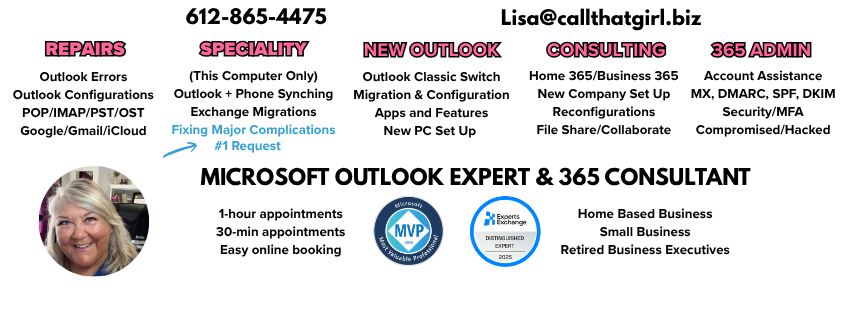
If you would like to discuss your issues, please email me lisa@callthatgirl.biz or call 612-865-4475. I live in Fort Myers Florida and do all my work on a national/international level remotely. I have been support email delivery, MS 365, Outlook and all email types for 30 years. Office 365 since it was launched around 2011.
Microsoft 365 Expert for Small Business
I’m Lisa Hendrickson, owner of Call That Girl. I specialize in helping small businesses, retired business executives, solopreneurs, independent professionals, and individuals with Microsoft Outlook and Microsoft 365.
I have more than 30 years of experience working with email, Microsoft Outlook, computers, and business technology. I am also a Microsoft Outlook MVP and have spent years helping clients troubleshoot the complicated problems that can happen when Outlook, Exchange Online, Microsoft 365, DNS, security, mobile devices, and third-party services all have to work together.
My Microsoft 365 services are designed for people who want access to an experienced professional without necessarily hiring a traditional IT company.
Whether you need a Microsoft 365 expert, Microsoft 365 consultant, Microsoft 365 specialist, Microsoft 365 administrator, Microsoft 365 technical support specialist, or Microsoft 365 troubleshooting expert, I can help you understand your environment and determine the best way to solve the problem.
Microsoft 365 can be an excellent platform for a small business, but managing it can become complicated very quickly.
A typical Microsoft 365 environment may include:
- Microsoft Outlook
- Exchange Online
- Microsoft 365 Admin Center
- Microsoft Entra ID
- OneDrive
- SharePoint
- Microsoft Teams
- Multi-factor authentication
- Microsoft Defender
- Email security
- Exchange mail flow
- Distribution lists
- Shared mailboxes
- Microsoft 365 groups
- DNS records
- SPF
- DKIM
- DMARC
- Mobile devices
- Third-party applications
- Domain registrars and DNS hosting providers
When something goes wrong, determining exactly where the problem exists is often the hardest part.
- Is Outlook causing the problem?
- Is Exchange Online causing it?
- Is the Microsoft 365 account configured incorrectly?
- Is there an authentication problem?
- Is Microsoft Entra ID involved?
- Is the domain configured correctly?
- Are the DNS records wrong?
- Is an old MX record still directing mail somewhere else?
- Is a third-party spam filtering service involved?
- Is the problem happening only on one computer?
- Is the mailbox itself working correctly but Outlook is not?
That is where experience becomes important.
I provide Microsoft 365 support for small businesses that need someone who can investigate the entire environment instead of troubleshooting only one piece of the problem.
Microsoft 365 Consultant for Small Business
Many small businesses do not need a full-time Microsoft 365 administrator.
They may not even need a traditional managed IT provider.
Instead, they occasionally need an experienced Microsoft 365 consultant for small business who can help when something complicated happens.
That might include:
- Microsoft 365 configuration problems
- Exchange Online problems
- Outlook connectivity problems
- Email delivery problems
- Authentication issues
- MFA problems
- DNS configuration
- Domain problems
- Mail flow problems
- Shared mailbox problems
- Microsoft 365 security concerns
- Suspicious login activity
- Email forwarding problems
- Outlook rules
- Microsoft 365 account problems
- OneDrive issues
- Microsoft Teams issues
- Mobile email synchronization
- New computer configuration
- Microsoft 365 administration questions
Instead of spending hours searching forums, watching videos, asking AI, or experimenting with settings you may not fully understand, you can hire an experienced Microsoft 365 specialist to help.
Microsoft 365 Specialist for Small Business
Microsoft 365 is much more than Word, Excel, and Outlook. Behind the applications is an entire cloud infrastructure that controls identities, authentication, mailboxes, security, domains, devices, and access. This is why a seemingly simple problem can become surprisingly complicated. For example, someone may contact me because: “My Outlook stopped working.” But Outlook may not actually be the problem. The real problem could involve Exchange Online, authentication, Microsoft Entra ID, a Microsoft 365 license, DNS, an expired domain, an MX record, an account security issue, or a third-party service. A good Microsoft 365 troubleshooting expert needs to understand how all of those systems interact.
Microsoft 365 Administrator for Small Business
If your company uses Microsoft 365, someone ultimately needs to understand what is happening inside your Microsoft 365 tenant. The Microsoft 365 Admin Center controls many important areas of your business technology.
Depending on the situation, I can assist with areas such as:
- User accounts
- Microsoft 365 licenses
- Password resets
- Administrative roles
- Exchange Online
- Mailboxes
- Shared mailboxes
- Distribution groups
- Email aliases
- Microsoft 365 groups
- Mail forwarding
- Exchange mail flow
- Authentication
- MFA
- Security settings
- Microsoft Entra ID
- Domain configuration
- DNS records
- Email troubleshooting
Small companies sometimes discover that nobody really knows who is administering their Microsoft 365 account.Perhaps an employee originally configured it. Maybe a former IT provider set everything up. Perhaps the owner purchased Microsoft 365 directly and configured it themselves. Or the company has simply accumulated settings over many years. I can help small businesses review what they have and make sense of their Microsoft 365 environment.
Microsoft 365 Admin Help for Small Business
If you are searching for Microsoft 365 admin help, you may already know where the problem is but need someone experienced enough to help you work through it. This is especially common with small businesses. You may be comfortable with technology but do not spend every day working inside Microsoft 365 administration. I regularly work with business owners, office managers, administrators, consultants, technical professionals, and other IT providers who simply need another experienced person to help investigate a Microsoft 365 problem. You do not necessarily need to hand over your entire IT environment. Sometimes you just need help solving one problem.
Microsoft 365 Exchange Expert
Exchange Online is one of the most important components of Microsoft 365. It is also one of the areas where troubleshooting can become complicated. I can assist with many Microsoft 365 Exchange Online issues involving:
- Mailbox configuration
- Outlook connectivity
- Email aliases
- Shared mailboxes
- Distribution groups
- Mail flow
- Email forwarding
- Rules
- Delivery problems
- Authentication
- Mobile synchronization
- Exchange settings
- Microsoft 365 domains
- DNS records
- MX records
Because I specialize heavily in Microsoft Outlook, I also understand the relationship between the Outlook desktop application and Exchange Online. That distinction matters. Sometimes Exchange Online is working perfectly while Outlook is not. Other times Outlook appears to be the problem when the actual problem exists in Microsoft 365. Being able to troubleshoot both sides can save a tremendous amount of time.
Microsoft 365 Email Expert
Email is still one of the most important business systems a company owns. When email stops working, business stops working.
Common Microsoft 365 email problems can include:
- Email not sending
- Email not receiving
- Messages going to spam
- Outlook constantly asking for passwords
- Outlook disconnecting from Exchange
- Shared mailbox problems
- Incorrect email forwarding
- Missing email
- Rules behaving unexpectedly
- Mobile devices not synchronizing
- Mailbox permissions
- Autodiscover problems
- DNS configuration problems
- MX record problems
- SPF problems
- DKIM problems
- DMARC problems
As a Microsoft 365 email expert and longtime Outlook specialist, I can investigate both the user-facing Outlook problem and the Microsoft 365 environment behind it.
Microsoft 365 DNS Help
DNS is one of the most confusing parts of Microsoft 365 for many small business owners.
Your Microsoft 365 email environment may depend on records including:
- MX
- TXT
- CNAME
- SPF
- DKIM
- DMARC
Your DNS may also be hosted somewhere completely different from where your Microsoft 365 subscription was purchased.
That can make troubleshooting especially confusing.
Your domain registrar might be one company.
Your website might be hosted somewhere else.
Your DNS could be hosted by another provider.
Your Microsoft 365 licenses could come from Microsoft or a Microsoft partner.
And your email may be Exchange Online.
Understanding which company controls which part of the environment is critical before making changes.
Incorrect DNS changes can interrupt email delivery, which is why I recommend understanding the entire configuration before changing records.
Microsoft 365 MX Record Help
MX records tell the internet where your email should be delivered.
If an MX record is incorrect, outdated, or pointing to an old email provider, messages may not arrive where you expect them.
I can help investigate Microsoft 365 email delivery problems involving MX records and determine where mail is currently being directed.
This can be especially important after:
- Changing email providers
- Changing DNS providers
- Moving domains
- Microsoft 365 migrations
- Website changes
- Domain registrar changes
- Previous IT company transitions
Do not randomly change MX records without understanding the existing mail flow.
A wrong DNS change can turn a small problem into a company-wide email outage.
Microsoft 365 SPF, DKIM and DMARC Help
Email authentication has become increasingly important.
Microsoft 365 administrators and business owners may encounter terms such as:
SPF — identifies servers authorized to send email for your domain.
DKIM — digitally signs outgoing email to help receiving systems verify that the message is legitimate.
DMARC — provides policies and reporting related to SPF and DKIM authentication.
These records can play an important role in email deliverability and protecting your domain from spoofing.
However, they need to be configured correctly.
For example, simply adding another SPF record can create a problem because a domain generally should not have multiple separate SPF TXT records.
I can help small businesses understand their Microsoft 365 email authentication configuration and troubleshoot problems involving SPF, DKIM, DMARC, DNS, and email delivery.
Microsoft 365 Security Expert for Small Business
Security has become one of the most important responsibilities of Microsoft 365 administration.
Small businesses are frequently targeted by:
- Phishing
- Password theft
- Business email compromise
- Fake Microsoft login pages
- Malicious mailbox rules
- Unauthorized forwarding
- Suspicious sign-ins
- Account takeover attempts
A compromised mailbox can create serious problems for a business.
Attackers may create inbox rules, forward email, monitor conversations, impersonate employees, or attempt financial fraud.
Depending on your Microsoft 365 configuration and licensing, security tools may include Microsoft Entra ID, Microsoft Defender, MFA, sign-in logs, auditing, and other Microsoft 365 security features.
If something looks suspicious, it is important to investigate rather than simply changing a password and assuming the problem is solved.
Microsoft 365 MFA Help
Multi-factor authentication is one of the most important security protections available for Microsoft 365 accounts.
However, MFA can also cause confusion when:
- A user gets a new phone
- Microsoft Authenticator is replaced
- Authentication methods are outdated
- A phone number changes
- A user cannot complete authentication
- Multiple accounts exist in Authenticator
- Security information needs to be updated
I can assist with Microsoft 365 authentication and MFA troubleshooting and help determine what needs to be corrected.
Microsoft 365 Outlook Expert
This is where my experience becomes particularly valuable.
Microsoft Outlook has been a major part of my career for decades.
As a Microsoft Outlook MVP, I specialize in troubleshooting Outlook environments that other technicians may find difficult or time-consuming.
Microsoft 365 and Outlook are closely connected, but they are not the same thing.
Outlook is the application.
Exchange Online is the email service.
Microsoft 365 provides the larger ecosystem around them.
When Outlook has problems connecting, synchronizing, authenticating, searching, sending, receiving, or working with multiple accounts, I can investigate both Outlook and the Microsoft 365 environment behind it.
Classic Outlook and New Outlook Support
Microsoft now has multiple Outlook experiences, including Classic Outlook, New Outlook, Outlook on the web, and mobile Outlook.
These versions do not always behave the same way.
Features available in Classic Outlook may not exist in New Outlook.
Add-ins may behave differently.
Account configuration can differ.
Local data files can differ.
Troubleshooting methods can differ.
This is why it helps to work with someone who understands both Microsoft 365 and the various versions of Outlook.
Microsoft 365 Shared Mailbox Help
Shared mailboxes are commonly used by small businesses for addresses such as:
support@
sales@
billing@
info@
office@
Shared mailboxes can be extremely useful, but problems may occur with permissions, automapping, sending permissions, Outlook configuration, or mailbox visibility.
I can assist with Microsoft 365 shared mailbox troubleshooting and configuration.
Microsoft 365 Email Forwarding Help
Email forwarding is useful, but it can also create security and mail flow concerns.
Forwarding may be configured in different locations, including mailbox settings, Exchange rules, Outlook rules, or other systems.
If email is mysteriously being forwarded, disappearing, or arriving somewhere unexpected, it is important to identify exactly where the forwarding is configured.
Unexpected forwarding can also be a sign of a compromised account.
Microsoft 365 Rules Troubleshooting
Mailbox rules can automate email organization, but malicious or incorrectly configured rules can cause email to disappear.
Hackers who gain access to a mailbox may create rules designed to hide messages containing words related to payments, invoices, security notifications, or other important communications.
If you suspect an account has been compromised, checking mailbox rules should be part of the investigation.
Microsoft 365 OneDrive Help
OneDrive can be useful for storing and synchronizing business files, but users can encounter problems involving:
- Synchronization
- Multiple Microsoft accounts
- Personal versus business OneDrive
- Missing folders
- Duplicate folders
- New computer setup
- Microsoft 365 account changes
- Sharing
- File locations
OneDrive problems are often confusing because Windows, Office, Microsoft accounts, and Microsoft 365 business accounts can all interact.
Microsoft 365 Teams Help
Microsoft Teams is another major part of Microsoft 365.
Small businesses may need assistance with account configuration, Microsoft 365 identities, meetings, Teams access, permissions, or understanding how Teams relates to the rest of Microsoft 365.
Microsoft 365 Help for New Computers
Buying a new computer sounds simple until you need to reconnect everything.
A new computer may need:
- Microsoft 365 applications
- Outlook
- Exchange email accounts
- Shared mailboxes
- OneDrive
- Microsoft Teams
- Office activation
- Multiple email accounts
- Signatures
- Mobile synchronization
- Existing Outlook data
I regularly help clients configure Microsoft Outlook and Microsoft 365 on new computers while making sure their existing email environment is understood before changes are made.
Microsoft 365 Troubleshooting Expert
Troubleshooting is often less about knowing where every button is and more about knowing where to look first.
After decades of technical support, I have learned that the problem a client describes is not always the actual problem.
“My Outlook is broken” could be Outlook.
Or Exchange.
Or Microsoft 365.
Or Windows.
Or DNS.
Or MFA.
Or an add-in.
Or a damaged Outlook profile.
Or a Microsoft account conflict.
Or a third-party application.
Or an old email configuration that nobody remembered existed.
My job is to investigate the symptoms, understand the environment, isolate the problem, and work toward the most practical solution.
Microsoft 365 Support for Retired Business Executives
I also specialize in providing technical assistance for retired business executives who still depend heavily on Microsoft Outlook and Microsoft 365.
Many retired executives have technology environments that are surprisingly complex.
You may have:
- Multiple email addresses
- Personal and former business accounts
- Several computers
- An iPhone or Android device
- An iPad or tablet
- Large contact databases
- Years of archived Outlook email
- Multiple calendars
- Microsoft 365 subscriptions
- OneDrive
- Old PST files
- POP or IMAP accounts
- Exchange accounts
You may no longer have a corporate IT department available to help you.
That does not mean you suddenly stopped needing professional technical support.
I provide experienced, one-on-one assistance for retired executives who want someone who understands complex Outlook and Microsoft 365 environments.
Microsoft 365 Support for Solopreneurs
Solopreneurs face a different challenge.
You are the business owner, salesperson, administrator, marketing department, and sometimes your own IT department.
When Microsoft 365 stops working, you cannot simply submit a ticket to corporate IT.
I provide Microsoft 365 support for solopreneurs who need professional help without hiring a full-time IT person.
Microsoft 365 Support for Independent Professionals
Consultants, attorneys, accountants, financial professionals, real estate professionals, executives, authors, coaches, and other independent professionals often depend heavily on Outlook and Microsoft 365.
Your email, calendar, contacts, files, and communications are essential to running your business.
I can provide individual Microsoft 365 consulting and troubleshooting when you need experienced technical assistance.
Independent Microsoft 365 Consultant
Some clients specifically want an independent Microsoft 365 consultant rather than a large IT company.
That is exactly how I work.
Call That Girl provides personalized remote support.
You work directly with me.
I can troubleshoot the immediate problem, explain what I find, and help you understand your options.
For many small businesses and independent professionals, that is exactly the level of support they need.
Hire a Microsoft 365 Expert
If you have already spent hours searching for answers, reading Microsoft forums, watching YouTube videos, asking ChatGPT, changing settings, and rebooting everything you can find, it may be time to hire someone.
AI and online tutorials can be extremely useful for explaining Microsoft 365.
But they cannot always see the complete history and configuration of your particular environment.
A Microsoft 365 tenant that has existed for ten years may contain settings created by several administrators, previous employees, IT companies, migrations, old email providers, and third-party applications.
That history matters.
Sometimes the fastest solution is having an experienced Microsoft 365 professional look at the actual environment.
Remote Microsoft 365 Support
My Microsoft 365 consulting and troubleshooting services are provided remotely.
I have provided remote technical support for years and work with clients throughout the United States and beyond.
Remote support allows me to work directly with you on your computer and Microsoft 365 environment without requiring an onsite visit.
Microsoft 365 Help Without an MSP Contract
Not every small business wants or needs a managed service provider.
Some businesses already have an IT company but need specialized Outlook or Microsoft 365 assistance.
Others handle most technology internally and only need professional help occasionally.
And some are very small businesses that simply do not need a monthly IT contract.
My services can be a good fit when you need Microsoft 365 help without an MSP contract.
You can hire me for the problem you have now rather than outsourcing your entire technology environment.
Second Opinion for Microsoft 365 Problems
Sometimes clients contact me because another technician has already worked on the problem.
That is perfectly fine.
Microsoft 365 environments can be complicated, and sometimes a second set of experienced eyes is exactly what is needed.
I can provide a Microsoft 365 second opinion when you want another professional to review the problem, troubleshoot Outlook, examine the Microsoft 365 configuration, or help determine the next step.
I also work with other IT professionals who need specialized Outlook or Microsoft 365 assistance for one of their clients.
Microsoft 365 Setup for Small Business
If you are setting up or reorganizing Microsoft 365 for a small business, planning matters.
Questions may include:
Which Microsoft 365 license do you need?
Who should have administrative access?
Should an address be a user mailbox, shared mailbox, alias, or distribution list?
How should MFA be configured?
Where is DNS hosted?
Who controls the domain?
Are SPF, DKIM, and DMARC configured?
How will Outlook be configured?
How will mobile devices connect?
How will files be handled?
Who will maintain administrative access if an employee or IT provider leaves?
A little planning can prevent major headaches later.
Why Small Businesses Hire Me for Microsoft 365 Help
Small business technology is different from enterprise IT.
You may not have an IT department.
You may not have a CIO.
You may not have an Exchange administrator.
And you may not want one.
You simply want your email, Outlook, Microsoft 365, computers, and mobile devices to work.
When they don’t, you want someone experienced enough to identify the problem without turning the situation into a giant IT project.
That has been the foundation of my business for years.
I enjoy solving the difficult Outlook and Microsoft 365 problems that leave business owners wondering who they should call.
About Lisa Hendrickson and Call That Girl
I’m Lisa Hendrickson, owner of Call That Girl.
I have more than 30 years of experience with computers, email, Microsoft Outlook, and business technology and have provided remote technical support professionally for many years.
I am a Microsoft Outlook MVP and specialize in Outlook, Microsoft 365, Exchange Online, email troubleshooting, account configuration, synchronization, and the complicated problems that can develop between Microsoft applications, cloud services, DNS, and third-party systems.
My clients include:
- Small business owners
- Retired business executives
- Solopreneurs
- Independent professionals
- Consultants
- Executives
- Home-office professionals
- Other IT professionals who need specialized assistance
My approach is simple:
Understand the problem.
Understand the environment.
Find the cause.
Fix what needs to be fixed.
Explain what happened.
And avoid changing things that do not need to be changed.
Need Microsoft 365 Help?
If Microsoft 365, Exchange Online, Outlook, email, authentication, DNS, or another part of your Microsoft environment is giving you trouble, you do not have to spend another day trying random fixes.
Contact Lisa Hendrickson at Call That Girl for professional Microsoft 365 and Outlook consulting, troubleshooting, and remote support.
Sometimes you don’t need an entire IT department.
You just need the right expert.