
New Outlook Error 080073cf8 New Outlook would not launch, so I tried to uninstall it, But it didn’t uninstall. It would not no matter what I tried. I got the error “You cannot uninstall Outlook” as well. Quick Answer on how I fixed it I typed this in the run line %localappdata%\Microsoft Deleted the OLK […]
 Category: Outlook Support
How to fix Microsoft Exchange 365 emails bouncing yahoo and gmail emails
How to fix Microsoft Exchange 365 emails bouncing yahoo and gmail emails
Google and Yahoo have revealed plans to introduce new email authentication standards for all email senders starting February 2024. The aim is to enhance deliverability and combat spam by preventing fraudulent messages like scams and phishing attempts. Under these changes, emails sent from unauthenticated addresses won’t land in recipients’ inboxes.
Basically, if you are emailing anyone with a yahoo.com or gmail.com email address, you might find the email bounced back. This is important to know if you are using a Microsoft 365 Exchange account. I have no details yet on other email hosts that only support IMAP or POP. I’m guessing those companies will follow along in time.
Many of my clients still use their yahoo, hotmail or AOL for business, and many with Microsoft 365 Exchange still email their clients who are using yahoo.com or any of the variants (AOL, Verizon, sbcglobal.net, Pacbell.com, etc)
AOL, Yahoo. Verizon, sbcglobal.net, pacificbell.com, pacbell.com, all of these will have issues at some point. These are not business email accounts and are and have been always “personal email” in the eyes of the internet, therefore they need to be validated for you to email them.

How to resolve:
You can update this record in your DNS: (This may or may not work but it’s worth a try before hiring help to get this done)
TXT
_dmarc or _dmarc.yourdomain.com
Value:
v=DMARC1; p=none;
OR this is now working better
v=DMARC1; p=quarantine; pct=100; rua=mailto:jane@coolexample.com; ruf=mailto:jane@coolexample.com
Replace the coolexample with another email, this email might get some alerts.
If you need my help, fill out the form below or schedule an appt. Take note these updates can take a bit of time and sometimes a few efforts, things have changed in the past couple of days with the DMARC/Yahoo records.

How to install the Copilot add-in for Outlook
How to install the Copilot add-in for Outlook
You’ve heard of Copilot and want to know if you can use the app in Outlook? So far, my testing says yes! I have been playing around with Microsoft Copilot for a few weeks, trying to figure out new things and I figured out the Outlook add-in. Here are some simple instructions to help you. I site my sources as well, from Microsoft
1.) Close Outlook
2.) Click on this link https://learn.microsoft.com/en-us/microsoft-sales-copilot/install-sales-copilot
3.) Read this page so you can know more
4.) Then on that page, you will see this “Install Sales Copilot Outlook add-in from AppSource” about half way down, then “Sign in to Microsoft AppSource”
5.) After you finish setting it up, open Outlook and it will or should be in your ribbon like my graphic below
6.) Test it! Reply to an email and in that message, the Sales Pilot Add-In is in the message. Click on it and you will see “draft an email”
7.) Another box will be lower and you can type in something like “reply to Liz” and it will AI generate a response using keywords in the message you received.
8.) Then you will see generated text, click “add to email” and it will move to the body of the message you’re replying to
9.) Edit as needed
10.) Send
11.) Love the message? Make it a template!
12.) Before you send, click on the “templates” and add to you 365 templates.
If you need my help, please contact me below. Thanks!
Copilot for Microsoft Outlook
Copilot for Microsoft Outlook
You’ve heard of Copilot and want to know if you can use the app in Outlook? So far, my testing says yes! I have been playing around with Microsoft Copilot for a few weeks, trying to figure out new things and I figured out the Outlook add-in. Here are some simple instructions to help you. I site my sources as well, from Microsoft. For this app, you do not need an enterprise license, just a 365 Exchange account.
1.) Close Outlook
2.) Click on this link https://learn.microsoft.com/en-us/microsoft-sales-copilot/install-sales-copilot
3.) Read this page so you can know more
4.) Then on that page, you will see this “Install Sales Copilot Outlook add-in from AppSource” about half way down, then “Sign in to Microsoft AppSource”
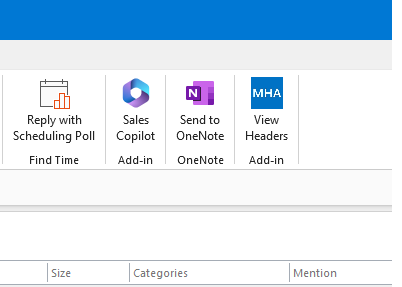
5.) After you finish setting it up, open Outlook and it will or should be in your ribbon like my graphic below
6.) Test it! Reply to an email and in that message, the Sales Pilot Add-In is in the message. Click on it and you will see “draft an email”
7.) Another box will be lower and you can type in something like “reply to Liz” and it will AI generate a response using keywords in the message you received.
8.) Then you will see generated text, click “add to email” and it will move to the body of the message you’re replying to
9.) Edit as needed
10.) Send
11.) Love the message? Make it a template!
12.) Before you send, click on the “templates” and add to you 365 templates.
If you need my help, please contact me below. Thanks!
Outlook 365 is defaulting to IMAP instead of Exchange
Outlook 365 is defaulting to IMAP instead of Exchange
FIXED: I was trying to setup a new Microsoft 365 Exchange account in Outlook desktop and it only gave me IMAP as an option. It should not as it’s a new account and I hadn’t changed the mail settings in the admin control center. After doing some research and help from my 365 vendor, turns out the account was not accepted as a domain, the tenant account was authorized but the domain was not.
As I did not do the actual work, I still wanted to share the answer and here is a link that gives better instructions. If you have a CSP partner, they can most likely help. If you call Microsoft, be sure to tell them you found my blog so they can skip other troubleshooting and get to the real issue. If you need my help with this or other 365/Outlook issues, please fill out the form below or schedule an appt.
Manage accepted domains in Exchange Online | Microsoft Learn
Another account from your organization is already signed in on this device
Another account from your organization is already signed in on this device
This was an interesting error to try to fix for my client. He was using Outlook 2016 and needed his office upgraded due to his new 365 Exchange account not connecting. I upgraded his office the correct way, but still got this error when opening Word and Excel docs.
I did the usual things to check, credential manager, accounts, etc. Nothing showed another account so I was not sure what to do. Like you all, I head to the internet looking for answers. Since I know how to read tech blogs well, I found the answer pretty quickly and will share with you all what I did and site my source.
Solution #4 was the fix, fairly simple and it worked immediately. Turns out he had an old 365 account that was not visible in the computer/settings.
Remember to backup the registry before doing any reg hacking. If you need my help, feel free to schedule time on my calendar below.
Core Services
Clients who have worked with me for years know how fast and efficient I can be during our time together. Since many only call me every year or so when they have problems, things can change on their computers; such as a new computer, more data, new accounts and configurations can change. Starting now and in 2024, I will be using my new core services outline for all appointments. If you’d like my help solving problems and want me to support you in the future, it’s important we complete this list your first time you call. The core list won’t need to be done every time you call as we will have the notes.
When you book an appt, here is the list of services you receive:
- Onboarding: I will review your computer, settings, configurations, Windows and Office updates, Microsoft accounts, issues you’re having and verify your backup. I will open a note pad on your computer to take notes. This can take 5-15 minutes depending on your issues. This is mandatory for all appointments.
- Game Plan: Once onboarding is completed, I will work on a game plan to complete your request. This will include options for you such as migrating your IMAP to Microsoft 365, or 3rd party apps you need to add/remove, options for backup if you don’t have any.
- Soft Quote: After the game plan is created, if you need more time than just one hour, I will give a soft quote. Some clients call with one issue and end up needing more work to reach their goals, this would possibly change my hourly rate or more time needed to complete.
- Start Work: I will start the work. Keep in mind some requests might take a couple of appointments due to downloading/uploading, synching, etc.
- Follow Up: Follow up is optional but most clients request it because once I’m done with your request, I tell you to use it for a day or so and create a list of questions, then I can cover it in the follow up appointment, usually the next day.
- Follow Up/AfterCare: During the follow up, I’ll answer questions or fix other minor issues still lingering. I also will discuss your backup now that your emails/data are configured correctly. For some it might be to set up Carbonite or Microsoft 365 backup options. We will also schedule a follow-up appointment if you’d like for 3-6 months ahead. I will also offer training for you if you need email management help or want training for your company.
- Close: You will also get an offer to buy another hour to use in 15 min increments for future help. As we just completed a request that was most likely a rework of your system, the next calls you might have are “quick questions” or fast repairs I can help with.