Tag: How do I enable Copilot in Outlook

How to turn off Copilot in Outlook

| July 7, 2026

How to turn off Copilot in Outlook

Copilot now has been enable for some licenses with Microsoft 365. If you’re not using it and want it off or disabled, here are the insructions.

This is for Classic Outlook and New Outlook.

Go to https://outlook.office365.com/

In the upper right area, there is a gear icon.
Click on that and in the settings pane on the left hand side, click on “Copilot”
and there you can toggle to “turn off Copilot”

This can take up to an hour to remove from your version of Outlook, you might want to close and reopen Outlook again.

If you need my help with this issue or any other Outlook/365 issues, use the form below to get in contact.

How to install the Copilot add-in for Outlook

| January 5, 2024

How to install the Copilot add-in for Outlook

You’ve heard of Copilot and want to know if you can use the app in Outlook? So far, my testing says yes! I have been playing around with Microsoft Copilot for a few weeks, trying to figure out new things and I figured out the Outlook add-in. Here are some simple instructions to help you. I site my sources as well, from Microsoft

1.) Close Outlook

2.) Click on this link https://learn.microsoft.com/en-us/microsoft-sales-copilot/install-sales-copilot

3.) Read this page so you can know more

4.) Then on that page, you will see this “Install Sales Copilot Outlook add-in from AppSource” about half way down, then “Sign in to Microsoft AppSource” 

5.) After you finish setting it up, open Outlook and it will or should be in your ribbon like my graphic below

6.) Test it! Reply to an email and in that message, the Sales Pilot Add-In is in the message. Click on it and you will see “draft an email”

7.) Another box will be lower and you can type in something like “reply to Liz” and it will AI generate a response using keywords in the message you received.

8.) Then you will see generated text, click “add to email” and it will move to the body of the message you’re replying to

9.) Edit as needed

10.) Send

11.) Love the message? Make it a template!

12.) Before you send, click on the “templates” and add to you 365 templates.

If you need my help, please contact me below. Thanks!


Copilot for Microsoft Outlook

| January 5, 2024

Copilot for Microsoft Outlook

You’ve heard of Copilot and want to know if you can use the app in Outlook? So far, my testing says yes! I have been playing around with Microsoft Copilot for a few weeks, trying to figure out new things and I figured out the Outlook add-in. Here are some simple instructions to help you. I site my sources as well, from Microsoft. For this app, you do not need an enterprise license, just a 365 Exchange account.

1.) Close Outlook

2.) Click on this link https://learn.microsoft.com/en-us/microsoft-sales-copilot/install-sales-copilot

3.) Read this page so you can know more

4.) Then on that page, you will see this “Install Sales Copilot Outlook add-in from AppSource” about half way down, then “Sign in to Microsoft AppSource” 

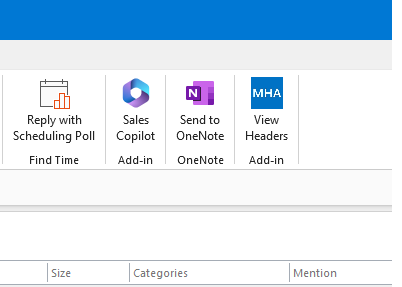
5.) After you finish setting it up, open Outlook and it will or should be in your ribbon like my graphic below

6.) Test it! Reply to an email and in that message, the Sales Pilot Add-In is in the message. Click on it and you will see “draft an email”

7.) Another box will be lower and you can type in something like “reply to Liz” and it will AI generate a response using keywords in the message you received.

8.) Then you will see generated text, click “add to email” and it will move to the body of the message you’re replying to

9.) Edit as needed

10.) Send

11.) Love the message? Make it a template!

12.) Before you send, click on the “templates” and add to you 365 templates.

If you need my help, please contact me below. Thanks!