
New Outlook Error 080073cf8 New Outlook would not launch, so I tried to uninstall it, But it didn’t uninstall. It would not no matter what I tried. I got the error “You cannot uninstall Outlook” as well. Quick Answer on how I fixed it I typed this in the run line %localappdata%\Microsoft Deleted the OLK […]
 Category: Outlook Support
How to block junk or spam in Microsoft 365 from never hitting your inbox or junk folder
How to block junk or spam in Microsoft 365 from never hitting your inbox or junk folder
In Exchange admin in Microsoft 365, you can setup server rules that will block emails so it doesn’t even hit your junk mail. I watch my junk mail folder like a hawk as sometimes my clients emails will go there. But lately, I’ve seen a lot of common words that I will never need to see again ever, such as: Wealth, VOIP, Financials, Million. I mean, maybe one day but not now lol.
So I created some mail flow rules to stop these from coming in to my junk or inbox.
Here is how you can do that:
- Go to your Exchange Admin Center: https://admin.exchange.microsoft.com
- Then go to Mail Flow, then Rules (it’s right under)
- Click on “Add a rule” and “create a new rule”
- Set the name and conditions you want. I put in a word that works for all “Million”
- Chose: “Apply this rule if” and then “if the subject or body” and then the box to the right “if the subject or body includes any of these words”
- A box will appear and then you can add the words you want filtered to go right to your deleted items.
- Click “Add” and then “Save”
- Be sure it’s enabled
Now you can send yourself a test from another email account and see if it appears in the junk or inbox. I’m very careful when considering words that I don’t want to miss but I keep adding new words daily and am finding my junk mail is getting down to less and less. I’m also checking my deleted items on occasion to verify.
I hope that works for you, if you need help with any other 365 Admin tasks, please use the form below to get in contact.
The save failed due to out of memory or disk space Microsoft Word
The save failed due to out of memory or disk space Microsoft Word
I started getting this error when using Microsoft Word and like you all, I searched online as my typical repairs didn’t work. I knew my template was corrupted but wanted to see if there was something else causing it. Nope, I was right. Corrupted Word Template. I found the answer under the comments in this Reddit post. Giving credit to Adriana.
SOLUTION
Go toC:\Users\{username}\AppData\Roaming\Microsoft\Templates.
If the Normal template looks too big (ex. 6KB – should be about 19KB), rename it with an “x” at the beginning and (if possible) copy and paste the “normal” template from a different computer. If not possible, still rename with an x, and try to open a new word document and save again. It should be good after the renaming.
Cannot save Word document as .doc or .rtf, error message: "The save failed due to out of memory or disk space."
byu/TheUnluckyBard inOffice365
Microsoft Office Installation Error Code 0-2015 (2250)
Microsoft Office Installation Error Code 0-2015 (2250)
I needed to reinstall Office, I have an enterprise license. I also had an apps for business installation. I removed both and restarted, still got this error.
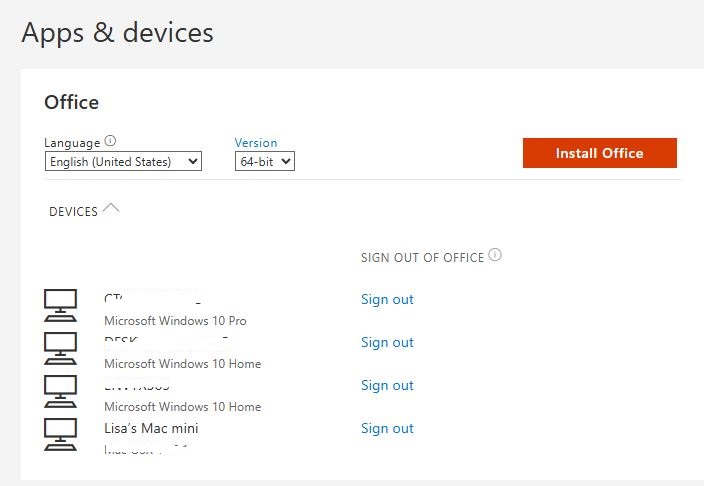
I went to reinstall via my portal and looked at my devices. I removed a few that were old or I didn’t recognize and now the installation completed.
I hope this helps you, if not, feel free to use the form below and get in contact.
Mastering Your Personal Microsoft 365 Account 30 min Webinar
Confused by your Microsoft account? You’re not alone, almost all my clients have Microsoft Personal 365 accounts as well as Business 365 accounts. I see it every day and I help my clients learn the difference when I help them.
In this quick 30-minute webinar, I’ll show you how your personal Microsoft 365 account really works, what you actually have, and how to avoid common mistakes like OneDrive confusion, duplicate subscriptions, and breaking things by accident.
Who should attend: People who bought their computers off Amazon or at a store and run a business, home users, retired business executives.
Who this is not for: Corporate employees, people who have an IT department or a managed service company who gave them a computer. These are setup without personal 365 accounts typically.
Session 30 min, 10 min for Q&A
Mastering Your Personal Microsoft 365 Account
- Personal vs Business: The #1 Confusion –These are two completely different systems that Microsoft lets you mix… and that’s where the problems start
- How to Log In + Live Tour –Two different logins for personal and business
- How your Windows login account with your 365 personal manages your OneDrive
- Subscriptions & Overpaying -Some of my clients have two paid subscriptions and you should only need one
- Support options
- Bitlocker Information
- Anything else I can think of!
Two sessions: Day and night
April 9th, 2026
12:30 PM EST to 1:00 PM EST
April 9th, 2026
7:00 PM EST to 7:30 PM EST
How to disable emojis in desktop Outlook
How to disable emojis in desktop Outlook
Open Outlook Classic
In the upper right area of Outlook, click on the notifications bell.
Notifications will open, click on the gear on the far right of that window
Select the notifications you want disabled:
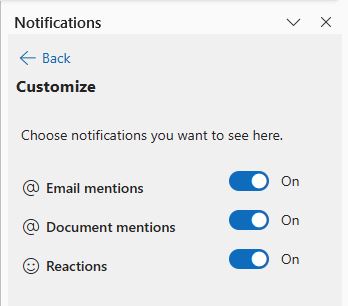
This should disable them. If you need my help with anything Outlook/365 related, use the form below.
How to Add Yahoo Email to Outlook After Comcast Switch
How to Add Yahoo Email to Outlook After Comcast Switch
If you found this blog, please note that I spent probably four hours working with a client to resolve this, so it was not an easy fix by any means. As it took me so long to figure out, I also had to go through a lot of troubleshooting EVERYTHING before I found the right recipe. I’ll start with what happened and then offer all the solutions in order. There are plenty of them.
Few things to know:
- Yahoo now has an app password, please get that before starting these long-winded repairs
- Always back up your registry before deleting any registry keys
- This can be a very long frustrating time before you get it connected
- Check your Microsoft 365 license, if you are logged in using your Comcast.net email, this is most likely the case of why it won’t connect in Outlook
- If you create a new profile, never delete your old profile. It most likely has all of your calendar and contact items, and these are very hard to recover.
- Due to so many changes going on in tech, if none of these helped you and you found a solution, please email me lisa@callthatgirl.biz
Repairs
- Client got a new computer. Comcast email would not add to Outlook Classic; we opted to come back later and try. Removed McAfee, ran MCPR.exe, no VPN and no added Firewalls. Windows Updates all completed and Office updates completed. (The reason why is I found out during troubleshooting is due to his Microsoft 365 personal license using a comcast.net email. If you change the license to another account, you might have a good shot, but this did not work for my client initially).
- When you add a Yahoo (comcast.net) email to Outlook, a pop-up window will/should immediately pop up and have you log into Yahoo and put in your credentials (password or app password). This never happened with my client; it went right to the IMAP setup. Nothing would get that pop up window for Yahoo to happen.
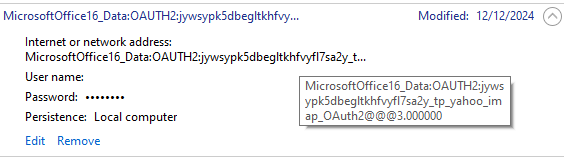
- When client wanted me to give it another shot, it was after March 6, 2026 credentials (Microsoft 365 apps) update issue many Gmail users are having now. The fix for this is to go into Windows credential manager and delete any Yahoo related OAUTH. Be careful if you have Gmail set up in Outlook, removing Gmail will require you to add the credentials again.
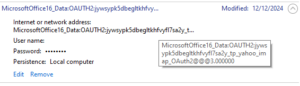
- Outlook would still not connect the email to Yahoo, so I found that his comcast.net email was still in the email prefilled in Outlook set up, I dug deeper into this. (In the end, don’t worry about this, it might not ever go away)
- After investigating more, I found in an online blog that deleting this registry key will help. This part can be tricky if you have a lot of emails setup in Outlook. This key will go to the profile and show all the keys for all the emails. EXAMPLE: (the ending in red will change for you as each key has a unique key and Outlook profile name is whatever name your profile is that you are having the issue with):
- Computer\HKEY_CURRENT_USER\Software\Microsoft\Office\16.0\Outlook\Profiles\
- Outlook profile name\9375CFF0413111d3B88A00104B2A6676\00000010
- This somewhat helped my client. Now the Yahoo pop up window showed up, but it would never connect. I found these instructions next: VERY DETAILED.
- This next set of instructions might help, if not, go to #8. Follow each step:
- Create an app password in yahoo for the comcast account
- Try to add the comcast account using that app password as your password
- Sign-in will fail but a new window will open
- On the window, click change account settings. A new window will open
- In the first “server” edit box past this: imap.mail.yahoo.com
- Paste this into the first port edit box: 993
- Paste this into the second server edit box: smtp.mail.yahoo.com
- Paste this into the second port edit box: 465
- Click next
- You should land back on the password screen. Your app password should still be there so you should just press Enter
- While this should work, it would still not connect to Outlook. I found while researching on my test computer, that his comcast.net was also found in this registry key. Yours might be different but this was what I found:
- Computer\HKEY_CURRENT_USER\Software\Microsoft\Office\16.0\Common\Identity\Identities\
- 3vd6qkvhmej23bltagwiwr2r4m_tp_yahoo_imap_OAuth2
- This was the actual registry key that helped it finally connect, but it was still not an easy connect. At first, it acted like it was going to connect, then it gave me a new window with a Yahoo sign in error. Eventually with a mix of password and app password, we got it set up!
- When it does connect finally, you will see the Microsoft 365 apps and be sure to check the boxes.
- After it connects, give Outlook some time to complete downloading all the system folders, then your folders and then email.
That’s it folks, I hope this helps you. If it did, please do me a favor and do 2 things: Subscribe to my newsletter https://callthatgirl.biz/keep-up-with-call-that-girl and if you are on LinkedIn, subscribe to my LinkedIn newsletter
If you need my help with this, please use the form below or schedule an appointment.