
New Outlook Error 080073cf8 New Outlook would not launch, so I tried to uninstall it, But it didn’t uninstall. It would not no matter what I tried. I got the error “You cannot uninstall Outlook” as well. Quick Answer on how I fixed it I typed this in the run line %localappdata%\Microsoft Deleted the OLK […]
 Category: Outlook Support
Yahoo Mail Not Adding Account to Outlook After Comcast Migration
Yahoo Mail Not Adding Account to Outlook After Comcast Migration
If you found this blog, please note that I spent probably four hours working with a client to resolve this, so it was not an easy fix by any means. As it took me so long to figure out, I also had to go through a lot of troubleshooting EVERYTHING before I found the right recipe. I’ll start with what happened and then offer all the solutions in order. There are plenty of them.
Few things to know:
- Yahoo now has an app password, please get that before starting these long-winded repairs
- Always back up your registry before deleting any registry keys
- This can be a very long frustrating time before you get it connected
- Check your Microsoft 365 license, if you are logged in using your Comcast.net email, this is most likely the case of why it won’t connect in Outlook
- If you create a new profile, never delete your old profile. It most likely has all of your calendar and contact items, and these are very hard to recover.
- Due to so many changes going on in tech, if none of these helped you and you found a solution, please email me lisa@callthatgirl.biz
Repairs
- Client got a new computer. Comcast email would not add to Outlook Classic; we opted to come back later and try. Removed McAfee, ran MCPR.exe, no VPN and no added Firewalls. Windows Updates all completed and Office updates completed. (The reason why is I found out during troubleshooting is due to his Microsoft 365 personal license using a comcast.net email. If you change the license to another account, you might have a good shot, but this did not work for my client initially).
- When you add a Yahoo (comcast.net) email to Outlook, a pop-up window will/should immediately pop up and have you log into Yahoo and put in your credentials (password or app password). This never happened with my client; it went right to the IMAP setup. Nothing would get that pop up window for Yahoo to happen.
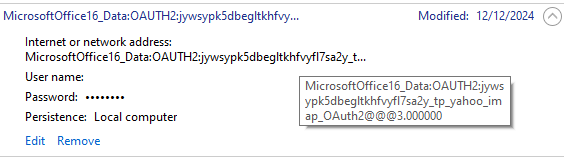
- When client wanted me to give it another shot, it was after March 6, 2026 credentials (Microsoft 365 apps) update issue many Gmail users are having now. The fix for this is to go into Windows credential manager and delete any Yahoo related OAUTH. Be careful if you have Gmail set up in Outlook, removing Gmail will require you to add the credentials again.
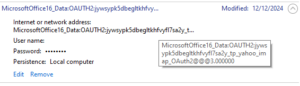
- Outlook would still not connect the email to Yahoo, so I found that his comcast.net email was still in the email prefilled in Outlook set up, I dug deeper into this. (In the end, don’t worry about this, it might not ever go away)
- After investigating more, I found in an online blog that deleting this registry key will help. This part can be tricky if you have a lot of emails setup in Outlook. This key will go to the profile and show all the keys for all the emails. EXAMPLE: (the ending in red will change for you as each key has a unique key and Outlook profile name is whatever name your profile is that you are having the issue with):
- Computer\HKEY_CURRENT_USER\Software\Microsoft\Office\16.0\Outlook\Profiles\
- Outlook profile name\9375CFF0413111d3B88A00104B2A6676\00000010
- This somewhat helped my client. Now the Yahoo pop up window showed up, but it would never connect. I found these instructions next: VERY DETAILED.
- This next set of instructions might help, if not, go to #8. Follow each step:
- Create an app password in yahoo for the comcast account
- Try to add the comcast account using that app password as your password
- Sign-in will fail but a new window will open
- On the window, click change account settings. A new window will open
- In the first “server” edit box past this: imap.mail.yahoo.com
- Paste this into the first port edit box: 993
- Paste this into the second server edit box: smtp.mail.yahoo.com
- Paste this into the second port edit box: 465
- Click next
- You should land back on the password screen. Your app password should still be there so you should just press Enter
- While this should work, it would still not connect to Outlook. I found while researching on my test computer, that his comcast.net was also found in this registry key. Yours might be different but this was what I found:
- Computer\HKEY_CURRENT_USER\Software\Microsoft\Office\16.0\Common\Identity\Identities\
- 3vd6qkvhmej23bltagwiwr2r4m_tp_yahoo_imap_OAuth2
- This was the actual registry key that helped it finally connect, but it was still not an easy connect. At first, it acted like it was going to connect, then it gave me a new window with a Yahoo sign in error. Eventually with a mix of password and app password, we got it set up!
- When it does connect finally, you will see the Microsoft 365 apps and be sure to check the boxes.
- After it connects, give Outlook some time to complete downloading all the system folders, then your folders and then email.
That’s it folks, I hope this helps you. If it did, please do me a favor and do 2 things: Subscribe to my newsletter https://callthatgirl.biz/keep-up-with-call-that-girl and if you are on LinkedIn, subscribe to my LinkedIn newsletter
If you need my help with this, please use the form below or schedule an appointment.
Fractional Microsoft 365 Consultant for Small Business
Fractional Microsoft 365 Consultant for Small Business
If you’re looking for an experienced Microsoft 365 Consultant to help with your small business, I can help. Not all small businesses fit in a managed service program and many people don’t want to be in a lengthy contract or don’t even qualify. You are in that “do it yourself” space. Going it alone can be frustrating if your online searches aren’t helping, or if Microsoft can’t help. I know how to navigate the 365 Admin accounts, security and many basic requests that are usual for a small business to need to be completed. As well, I’m an Outlook Expert and desktop apps specialist, so you get a 3-in-1 skilled technician helping you.
I offer 1-hour appts up to 10 hour blocks. I also offer same day assistance and an online booking appointment scheduler so you can book your time when you are free. My business does not offer service contracts but blocks of time to help support your project or on-going support.
My services list can be viewed on my pricing page and if you need help with technology not on the list, just ask. I usually can figure out software that is new such as apps and connectors
https://callthatgirl.biz/pricing-and-services
Use the form below to schedule a no cost consult to see if I can help or call 612-865-4475
Microsoft 365 Email and Outlook Consulting for Small Business
Microsoft 365 Email and Outlook Consulting for Small Business
If you’re looking for an experienced Microsoft 365 Consultant to help with your small business, I can help. Not all small businesses fit in a managed service program and many people don’t want to be in a lengthy contract or don’t even qualify. You are in that “do it yourself” space. Going it alone can be frustrating if your online searches aren’t helping, or if Microsoft can’t help. I know how to navigate the 365 Admin accounts, security and many basic requests that are usual for a small business to need to be completed. As well, I’m an Outlook Expert and desktop apps specialist, so you get a 3-in-1 skilled technician helping you.
I offer 1-hour appts up to 10 hour blocks. I also offer same day assistance and an online booking appointment scheduler so you can book your time when you are free. My business does not offer service contracts but blocks of time to help support your project or on-going support.
My services list can be viewed on my pricing page and if you need help with technology not on the list, just ask. I usually can figure out software that is new such as apps and connectors
https://callthatgirl.biz/pricing-and-services
Use the form below to schedule a no cost consult to see if I can help or call 612-865-4475
Microsoft 365 Support for Small Business
Microsoft 365 Support for Small Business
If you’re looking for an experienced Microsoft 365 Consultant to help with your small business, I can help. Not all small businesses fit in a managed service program and many people don’t want to be in a lengthy contract or don’t even qualify. You are in that “do it yourself” space. Going it alone can be frustrating if your online searches aren’t helping, or if Microsoft can’t help. I know how to navigate the 365 Admin accounts, security and many basic requests that are usual for a small business to need to be completed. As well, I’m an Outlook Expert and desktop apps specialist, so you get a 3-in-1 skilled technician helping you.
I offer 1-hour appts up to 10 hour blocks. I also offer same day assistance and an online booking appointment scheduler so you can book your time when you are free. My business does not offer service contracts but blocks of time to help support your project or on-going support.
My services list can be viewed on my pricing page and if you need help with technology not on the list, just ask. I usually can figure out software that is new such as apps and connectors
https://callthatgirl.biz/pricing-and-services
Use the form below to schedule a no cost consult to see if I can help or call 612-865-4475
Microsoft 365 Consultant for Small Business IT Support
Microsoft 365 Consultant for Small Business IT Support
If you’re looking for an experienced Microsoft 365 Consultant to help with your small business, I can help. Not all small businesses fit in a managed service program and many people don’t want to be in a lengthy contract or don’t even qualify. You are in that “do it yourself” space. Going it alone can be frustrating if your online searches aren’t helping, or if Microsoft can’t help. I know how to navigate the 365 Admin accounts, security and many basic requests that are usual for a small business to need to be completed. As well, I’m an Outlook Expert and desktop apps specialist, so you get a 3-in-1 skilled technician helping you.
I offer 1-hour appts up to 10 hour blocks. I also offer same day assistance and an online booking appointment scheduler so you can book your time when you are free. My business does not offer service contracts but blocks of time to help support your project or on-going support.
My services list can be viewed on my pricing page and if you need help with technology not on the list, just ask. I usually can figure out software that is new such as apps and connectors
https://callthatgirl.biz/pricing-and-services
Use the form below to schedule a no cost consult to see if I can help or call 612-865-4475
Microsoft 365 Help for Small Business Owners
Microsoft 365 Help for Small Business Owners
If you’re looking for an experienced Microsoft 365 Consultant to help with your small business, I can help. Not all small businesses fit into a managed service program, and many people don’t want to be locked into long contracts—or don’t even qualify.
You are in that “do-it-yourself” space.
Going it alone can be frustrating when online searches don’t solve your issue, or when Microsoft support can’t get you where you need to be. I know how to navigate Microsoft 365 Admin accounts, security, and the everyday issues small businesses run into.
I’m also an Outlook Expert and desktop apps specialist, so you’re getting a 3-in-1 technician who understands how everything connects—email, admin, and apps.
I offer 1-hour appointments up to 10-hour blocks, same-day assistance, and an easy online scheduler so you can book when it works for you. No contracts—just real help when you need it.
What Kind of Microsoft 365 Help Do Small Businesses Need?
Microsoft 365 Admin Setup and Troubleshooting
Setting up Microsoft 365 correctly is where most problems begin. I help with:
-
New tenant setup and configuration
-
User and license management
-
Fixing admin account access issues
-
Cleaning up messy or duplicate accounts
Email Delivery and DNS Issues (SPF, DKIM, DMARC)
If your email isn’t landing where it should, I can fix that.
-
Emails going to spam
-
Missing or broken SPF, DKIM, or DMARC records
-
Domain and DNS configuration issues
-
Microsoft 365 email delivery troubleshooting
Outlook Problems and Sync Issues
This is where I spend a lot of my time.
-
New Outlook vs Classic Outlook confusion
-
Outlook not syncing across devices
-
iPhone and Android email issues
-
PST/OST data problems and “This Computer Only” folders
Microsoft 365 Support Without Contracts
Hourly Microsoft 365 Consulting
Book time as you need it—no pressure, no commitment.
Same-Day Microsoft 365 Help
If something breaks, I’m available quickly to help you get back up and running.
Support for One-Time Projects or Ongoing Needs
Whether you need help fixing one issue or want someone you can call regularly, I’ve got you covered.
Who This Microsoft 365 Help Is For
Small Business Owners Managing Their Own IT
You’re doing it yourself, and you just need expert help when things get confusing.
Home-Based Businesses and Solo Entrepreneurs
You don’t need a full IT company—you need someone who understands your setup.
Retired Executives Running Side Businesses
You want things to work without spending hours trying to figure them out.
Common Microsoft 365 Problems I Help Solve
These are real issues I see every single week:
“My email stopped working”
Suddenly you can’t send or receive—this is usually a DNS, authentication, or account issue.
“Outlook is not syncing across devices”
Desktop looks different than your phone—or emails are missing entirely.
“I can’t access my Microsoft 365 admin account”
Login confusion, wrong account types, or permission issues.
“My domain or DNS settings are wrong”
MX records, SPF, DKIM, DMARC—this is where a lot of setups go sideways.
Why Work With a Microsoft 365 Consultant Instead of Microsoft Support?
Microsoft support has its place—but it’s not built for small business reality.
-
You get real, one-on-one help
-
Faster troubleshooting and resolution
-
Someone who understands how small businesses actually operate
-
No scripts, no bouncing between departments
I’ve worked with thousands of real-world cases and know how to get to the root of the issue quickly.
Work With a Microsoft 365 Expert
I bring over 30 years of experience working with business email systems and Microsoft technologies. I’m a Microsoft MVP in Outlook and specialize in real-world problem solving—not theory.
If something is broken, confusing, or just not working the way it should—I can help you figure it out and fix it.
Pricing and Services for Microsoft 365 Help
You can view my full services and pricing here:
👉 https://callthatgirl.biz/pricing-and-services
If you need help with something not listed, just ask. I’m very used to figuring out new apps, integrations, and connectors.
Real Microsoft 365 Issues I Fix Every Week
Here’s a snapshot of what comes across my desk regularly:
-
Outlook won’t open after switching to New Outlook
-
Email stuck in Outbox
-
Duplicate accounts (Gmail + Microsoft login confusion)
-
OneDrive syncing everything unexpectedly
-
Shared mailboxes not showing up
-
Licensing applied incorrectly
Microsoft 365 Help – Frequently Asked Questions
Do I need a Microsoft 365 consultant for my small business?
If you’re managing your own IT and running into issues, having an expert available can save you hours (and a lot of frustration).
Can you fix Outlook and email issues remotely?
Yes—all sessions are remote and designed to solve problems quickly.
Do you offer ongoing Microsoft 365 support?
Yes, you can book as needed or continue working together over time—no contracts required.
What is the difference between Microsoft support and a consultant?
Microsoft support follows a process. I troubleshoot based on real-world experience and fix issues faster.
Book a Free Microsoft 365 Consultation
Use the form below to schedule a no-cost consult to see if I can help.
Or call: 612-865-4475
https://callthatgirl.biz/pricing-and-services
Use the form below to schedule a no cost consult to see if I can help or call 612-865-4475