Just like you wouldn’t let a stranger in your house, don’t let the team from “Windows software” in your computer. I have received many calls from clients who almost got scammed, those that got completely scammed and paid the scammers. They are kind of tricky with their tactics to get you to let them in your computer.
Here is what they do, they call you. Then they start out usually by telling you that your computer has viruses or errors that need fixing. (this is the time to just HANG UP) They sometimes try to remote in (with you helping them of course) so they can show you the viruses (fake, they are showing you basics of your computer that the average person does not tend to look at) and then they say they can fix your computer for you, pricing at $149 to $300. With unlimited repairs later.
I have heard of many different stories though so just hang up right away. Nobody from Microsoft will probably ever call you (unless you put a ticket in with them) and there is not “Windows Team” or “Windows Software” team.
I have received 2 calls from these scammers, 2 different types of calls. I just wanted my clients and social media followers to listen to how they work.
Turn down your volume if you are sound sensitive.
My favorite part is the guy saying “Yah yah yah”, so Midwestern of him. You can tell he calls our area often!
YOU CAN LISTEN HERE
This guy was from the Windows Team, he was the better of the 2 calls. He did not try that hard to get in my computer, but other “team members” will try hard and get you to believe that you have viruses.
This was another guy who didn’t let me talk much, he was kind of scary to be honest. I was not lying. I’m scared because he was telling me things that were not true. I worry about how my clients react and allow these people in their systems. Don’t fall victim to this scam, just hang up. At 4:30, it gets pretty good. I was faking that I was working with a Mac computer and that disturbed him apparently.
We’re always trying to find ways to maximize our profits and minimize our expenses. But, can excessively minimizing your expenses negatively affect your business? The answer is YES. Here at Call That Girl, we many times see clients using free email services for their business needs. Now is the time to move off of the free services and move to your business branded email. The transition is easier than you think, we will help you and can set up your new email so everything matchs on your computer, iPhone, iPad, Tablet, Surface, etc. No more band-aiding your deletes and calendar appts.
If you’re using a free email service, such as Yahoo, Gmail, Comcast.net or EarthLink email for your business, it’s time to reconsider. Here are four reasons why you will benefit from using a company branded email instead:
1.) Credibility
Increased trustworthiness
Increased professionalism
Stronger first impression
Established and genuine
2.) Memorable
Increased online identity
Higher recall rate for past clients
3.) Organization
Individual employee emails
Department specific emails
Shows clients their needs are important to you
Allows them to easily contact the right person
Decreases inbox clutter
Separation of personal and work life
4.) Brand Promotion
Allows you to promote YOUR business, not a third-party email provider
Keeps company name in front of leads, clients, partners, etc.
More exposure!
Bottom line: your business will thrive when you decide to transition to a company branded email! Let our specialists assist you and your team today!
Yep, I called it. Gysyncit wins victorious over CompanionLink for installation, configuration and setup and of course…correctly synching iCloud to Google Calendar with Outlook and iPhone in just 20 minutes flat.
The 3 (4) titans can play together nicely, finally.
If you are having issues syncing your Gmail calendar to your iPhone to your Outlook, give me a call and I’ll help you with this issue. I cannot guarantee a 20 minute set up, but it should be under an hour either way.
Today was interesting. I had a client book some time with me today to work on a Outlook, Gmail calendar and contacts sync issue.
Since he is using free Gmail, you are held hostage to not being able to sync calendars anymore and forget about contacts unless you use a 3rd party tool. And while there are many out there, I tend to lean towards CompanionLink or Gsyncit. Both work, but I’m finding Gysyncit is working better. Less snags in the setup and first round of syncing.
So the client and I set up CompanionLink, he is on a slow internet connection and we find the syncing very slow and required us to close his Outlook and reboot a couple of times to see the actual Outlook calendar on his Samsung phone. We used the Google option for syncing. I also had to configure the settings a few times and I will guess that an average user of CompanionLink would not know about this, the snooping around I do very fast and furiously. When a client is paying per hour, you wan this to just work!
End of the job, we found appointments syncing. Client happy. Until later, no joy. Now we will try Gsyncit tomorrow. I tell ya, free Gmail is not always free folks. I hate telling clients this, but for me it’s not the best if you love and heart Microsoft Outlook like I do!
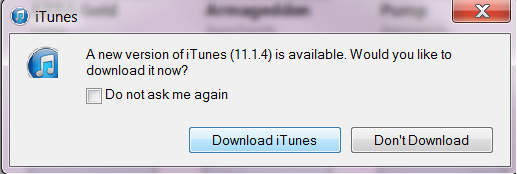
Just a warning folks, iTunes updates are back at it again, failing and corrupting your current iTunes setup. Your music should be fine as it’s saved in a music directory, but hey….are you backing up your music just in case? Never know. I’ve had my iPhone blown away from a bad update and thank goodness, a restore was done recently.
Updates, need ’em, but how bad? I’m willing to risk it sometimes.
So tonight I am doing the famous bad update to see what happens. So far, so good. Half way there. And after it was done, all set. iTunes still works. But let’s look at what programs I don’t have, that some of my clients did have on their system that may have caused the update to crash. (*I haven’t rebooted my computer yet either, so we will see if that happens tomorrow am!)
From what I have seen, the Apple Mobile Device services were the partial cause. You can try to start the services again and it might work, but I had to do a full clean up and reinstall on the computer I fixed last.
What is the repair you ask? Basically remove all Apple products from your computer, run a cleaner to remove all registry items associated, reboot and then install from scratch. Be sure to back up your music before hand.
Need our help? Give us a call, we can get it fixed quick for you. 612-865-4475
How to recover a deleted comment in a Teams Chat Quick Answer: If you are looking on how to recover a deleted comment, the easiest way is to view the Teams desktop client and view the chats, you can “Undo” a deleted comment in a chat. Other than that, you will most likely need to […]
GoDaddy This Sign-In Page is being retired Microsoft 365 This is now a trending sign-in error my clients are seeing on their computers when trying to open Outlook. Typically I try to help clients with this error, but for this one, it’s a Windows issue. And while I do some troubleshooting Windows for my clients, […]
Office ClickToRun Bad Image Error 0xc000012f Another odd one I came across today. It was part of another error, so I’m not sure if they teamed up on Office but either way, I took care of it but reinstalling Office on top of the other version that would not uninstall. See this post https://callthatgirl.biz/error-outlook-exe-bad-image I’ll […]
Error Outlook.exe – Bad Image This error is an old one from what I researched and I haven’t seen it myself in many years, if ever. I could not uninstall Office per all the online instructions, so I just opted to install a new version on top of it and that seemed to have worked. […]
New Outlook Error 080073cf8 New Outlook would not launch, so I tried to uninstall it, But it didn’t uninstall. It would not no matter what I tried. I got the error “You cannot uninstall Outlook” as well. Quick Answer on how I fixed it I typed this in the run line %localappdata%\Microsoft Deleted the OLK […]
Hi folks, I believe you found this post from my newsletter or from my blogs while you’re out searching for help. Many people are now coming to my site from Ai sources and I love that! AI is an amazing troubleshooting assistant. And I use ChatGPT every day, it’s so helpful for me but with […]
How to view all email accounts in one inbox in New Outlook Pretty easy to view, just do this in your New Outlook Click on View View settings Mail Folder pane Show all accounts/then check the box to view all accounts in one place
Microsoft 365 Account Hacked What to Do Immediately Quick answer: read this entire blog post and if you need my help, use the form below to get in contact. Take note: Always have a second global admin account to back you up! How you can tell you were hacked: Email not delivering People saying they […]
Microsoft MFA MultiFactor Authenticator Not Working on phone Oof this is not fun to deal with folks. If you are being prompted on your computer to put in a code on your MFA app on your phone to login and it’s not working, it’s probably due to a few reasons: You have a new phone […]
New Outlook contacts: Why are my contacts so hard to edit, organize, and manage in New Outlook? Quick answer: New Outlook isn’t 100% ready for contact management in my opinion for some email accounts. Microsoft Exchange seems to work the best, but Microsoft also built New Outlook. Gmail is problematic in my opinion, mostly due […]
Sync Stopped You can’t edit this notebook because it’s location is no longer available. To resolve, save a copy of the notebook OneNote is not the easiest program to troubleshoot but I will also add, it’s not a call I get often. So, good with the bad news here. Recently I took a call from […]
Why do I have three Microsoft accounts using the same email address Simple answer! Microsoft doesn’t give you a handbook on how to manage all of your types of accounts. So it makes it super easy for a person to have many Microsoft accounts with the same email. There are so many, let’s count ’em! […]
Do you have multiple Microsoft 365 subscriptions and aren’t sure which ones you actually need? Yes, most likely you do. I would guess that 90% of my clients who call me to fix their Outlook or 365 problems have a personal computer they purchased themselves. Then they also log in with their business email (which probably […]
New Outlook Not Launching or Opening I took a call today from a client who loves New Outlook but it would not launch at all. I checked for the usual suspects like AV/VPN and those weren’t the issue. I decided to dig deeper and when into the program files and found a small file that […]
Email Is the G.O.A.T. | Why AI Will Never Replace Business Email Not many people know this, but the only reason I got into IT is because a guy who I had a crush on back in 1994 told me to get email. I thought he was ridiculous, why on earth would I need email […]
Best Outlook Calendar Synching Options Hi folks, below is a list of all the calendar synching options I can think of. These work with Outlook Classic. New Outlook has a completely different way of synching, so that will be for another time. While I go through the list, I’ll also explain some calendar types you […]
How to turn off Copilot in Outlook Copilot now has been enable for some licenses with Microsoft 365. If you’re not using it and want it off or disabled, here are the insructions. This is for Classic Outlook and New Outlook. Go to https://outlook.office365.com/ In the upper right area, there is a gear icon. Click […]
Hi folks, I’m Lisa Hendrickson and I wrote up this article just for technicians and “tech savvy” users to learn about New Outlook. This is not your ordinary read, it’s more of a “How-To” on all the technical requirements of New Outlook. What I cover is mostly everything you need to know on how to […]
Why is Outlook Exchange Is Not Connecting Quick Answer:Outlook with an Exchange account connected, it might not connect for many reasons. Fixing it could be a bit of work for you figure out but below is the list I cover during my onboarding apppointments. Hi folks, this is one of my top Outlook calls (IMAP […]
Why is Outlook IMAP not syncing? Fix Outlook Email, Calendar, Contacts, and Microsoft 365 Sync Problems –>Quick Answer:Outlook may stop syncing because of OST corruption with IMAP or Exchange, damaged Outlook profiles, Microsoft 365 or App Password authentication failures, Gmail IMAP delays, iCloud conflicts, VPN interruptions, antivirus filtering, or Exchange Server connection issues. Hi folks, […]
Why is Outlook not syncing? Fix Outlook Email, Calendar, Contacts, and Microsoft 365 Sync Problems –>Quick Answer:Outlook may stop syncing because of OST corruption with IMAP or Exchange, damaged Outlook profiles, Microsoft 365 or App Password authentication failures, Gmail IMAP delays, iCloud conflicts, VPN interruptions, antivirus filtering, or Exchange Server connection issues. Hi folks, this is […]
SMTP error from remote mail server after pipelined MAIL If you are online searching for this error and figuring out how to resolve it, first I’ll say “I’ve never seen this before” and that is rare in my business. From what I know about email delivery errors in the past, I’m going with spoofing. I […]
Pinning sticky notes on the side bar of New Outlook Hi folks, the sticky notes or “notes” in Microsoft Exchange, Outlook.com and older MSN accounts is not available to be pinned on the side anymore. What you can do is find the “notes” in your mailbox and right click on the 3 dots and click […]
Pinning sticky notes on the side bar of OWA Hi folks, the sticky notes or “notes” in Microsoft Exchange, Outlook.com and older MSN accounts is not available to be pinned on the side anymore. What you can do is find the “notes” in your mailbox and right click on the 3 dots and click “add […]
PPE Hosted tried to deliver your email message The rest of the message is below, but if you’re getting this in a bounce back message when you email Google and have Microsoft Exchange with GoDaddy, or are emailing someone on Exchange and the email is going to junk. What helped my last client to get […]
Cannot start Microsoft Outlook. Cannot open the Outlook window. The set of folders cannot be opened This can be a snaggy error to fix. I have seen this error for years with Microsoft Exchange. Lately the fix for me has been to delete the 16,454 KB size file in the app data folder. Usually I […]
Why is New Outlook Slow to Sync New Outlook is still new to a lot of people and while it’s fast…it can still be sluggish. Below is a list of things I look at when I help clients. I go through most of these during the onboarding of our first appointment and can figure out […]
Why is Outlook Slow to Sync Outlook Classic can be slow to synch for many reasons, below are the top things I look for when I help a client. As an expert in Outlook Classic, I go through most of these during the onboarding of our first appointment and can figure out the problem quickly. […]
Why is Outlook search not working? Good question! Here are some answers in a bullet form (created by me not AI) and how to fix at the end! BONUS: New Outlook included! Outlook Classic Too much email Added a new PST file and it’s not done indexing Set up a new PC and Outlook isn’t […]
iCloud for Windows not synching with New Outlook If you have iCloud for Windows set up in New Outlook, you might notice a synching delay. I just helped a client who called me back to let me know about this. I told him that iCloud on the browser and phone update automatically but there might […]
How to block junk or spam in Microsoft 365 from never hitting your inbox or junk folder In Exchange admin in Microsoft 365, you can setup server rules that will block emails so it doesn’t even hit your junk mail. I watch my junk mail folder like a hawk as sometimes my clients emails will […]
New Outlook Stuck On Loading People If you launch New Outlook and you click on the people icon and see the “loading people” loop, you can remove the account from New Outlook and add it back in. Something with the account is not connected correctly. Usually based on an update from Gmail or Windows or […]
Outlook setup for iCloud for Windows Error This error is not the actual problem on why your iCloud for Windows software won’t setup Outlook. The real problem is that your Outlook profile doesn’t have a PST or a Microsoft Exchange account setup in the profile. Here is how you can fix this and get your […]
Network Solutions Migration Help I’m starting to get many calls from folks about needing help leaving Network Solutions (NS) as an email provider. As NS only offers email through a POP or IMAP account, my Outlook clients have local calendars and contacts and need help setting up 365 accounts and migrating all the data to […]
New Outlook Features for Gmail Users Just like my post last week about amazing changes coming ahead for Outlook Classic users, the Gmail crowd gets it’s own post. I have come up with a nice list of changes they will enjoy, or so I think anyway. This comes from the clients asking questions such as […]
New Outlook Cannot Add a New Email Without a Microsoft License This is a new issue I am seeing lately. Today I was helping a client set up his New Outlook email. He set up an Outlook.com first, then his other Outlook.com email. But when we tried to add his Business 365 account, it would […]
Microsoft Access not emailing from New Outlook I helped a client this past week and we could not get MS Access to email from New Outlook. The client really loves New Outlook so I created a solution for him that works but not through New Outlook. I launched Outlook Classic, pinnned to his task bar. […]
How many PST files can you add to New Outlook Question that live rent free in my head 😂 Back when I was doing all my first round testing of the technical limits of New Outlook, adding in PSTs was not available. Today I helped a client and his request was “I want to use […]
Where are the DNS records located in Wix I titled this exactly what I was searching for and could not find it so I thought I’d share. I used the search area in Wix, typed in MX and it took me to this link. You can click on the 3 dots at the far right […]
Hi Folks! Teresa Cyrus joined me this week to discuss the hot topic “How to quit ChatGPT for Microsoft Copilot”. In the podcast we discuss how we use AI and how we are moving over to Copilot. Many good examples on things we search for that are easy to change for Copilot. Direct link to […]




 We’re always trying to find ways to maximize our profits and minimize our expenses. But, can excessively minimizing your expenses negatively affect your business? The answer is YES. Here at Call That Girl, we many times see clients using free email services for their business needs. Now is the time to move off of the free services and move to your business branded email. The transition is easier than you think, we will help you and can set up your new email so everything matchs on your computer, iPhone, iPad, Tablet, Surface, etc. No more band-aiding your deletes and calendar appts.