New Outlook Error 080073cf8 New Outlook would not launch, so I tried to uninstall it, But it didn’t uninstall. It would not no matter what I tried. I got the error “You cannot uninstall Outlook” as well. Quick Answer on how I fixed it I typed this in the run line %localappdata%\Microsoft Deleted the OLK […]
 Category: Outlook Support
Can you drag emails to calendar and contacts in New Outlook?
Can you drag emails to calendar and contacts in New Outlook?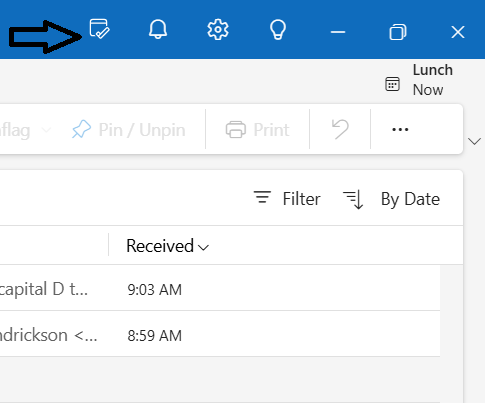
Update Oct 7, 2024
Yes, you can drag an email to the calendar in New Outlook. You do need the “My Day” toggle turned on, see image below.
Then you can drag your emails to the calendar, as of the data of this post, you cannot drag an email to “contacts” in New Outlook.
Need other help with the New Outlook? Contact me below and let me know your issues.
Want even more information or use other social media/communities?
- Follow my New Outlook Articles on Linkedin: https://www.linkedin.com/in/callthatgirl/recent-activity/all/
- Interested in learning about New Outlook? Read my New Outlook Resource Guide, with all my links to articles, YouTube videos and podcast https://callthatgirl.biz/new-outlook-resource-guide
- Follow my YouTube Channel where I post more videos, click here https://youtube.com/callthatgirl
- Follow me on Linkedin, I will be posting articles there www.linkedin.com/in/callthatgirl
- Love Reddit? Join my community https://www.reddit.com/r/NewOutlook
Want to contact me? Fill out the form below!
Your setup couldn’t be started because of an unexpected error (0x800706ba)
Your setup couldn’t be started because of an unexpected error
(0x800706ba)
This error is not the actual problem on why your iCloud for Windows software won’t setup Outlook. The real problem is that your Outlook profile doesn’t have a PST or a Microsoft Exchange account setup in the profile.
Here is how you can fix this and get your iCloud setup in Outlook again!
Outlook has “profiles” that hold all of your email accounts. Some of you will have only IMAP emails, some of you will have Microsoft Exchange and other IMAP email accounts, some of you might have POP with PST (you should not have an issue with setting up iCloud for Outlook). The iCloud app needs a PST file for some reason to setup correctly.
If this sounds confusing for you and you don’t want to do it, contact me and I can help. You always will want to backup all of your data before doing this just in case something bad happens. It shouldn’t but for those of you with (This computer only) for your calendar and contacts, you might have issues and I would backup those before doing anything else.
iCloud setup requires a PST to finish the setup. Here are some instructions:
- Go to your Outlook profile in the mail app in the control panel
- Click on “Data files”
- Set a PST to be the default, if you don’t have one, you can add one in there (again be careful if you have a (This computer only) calendar and contacts.
- You will get a notification about a change that will happen in your profile
- Then relaunch Outlook
- Then log out of the iCloud app
- Log in again
- Synch the calendar and contacts
- A Wizard will launch, select the top option
- You will see all of your iCloud data “downloading” meaning it’s bringing the data down into the computer. It’s not being hosted in the PST file but iCloud still requires a PST for some odd reason
- When it’s setup, you will get the setup finished window. If you get the iCloud errors, you might not have a PST setup correctly
- Launch Outlook and you will see “iCloud” at the top of Outlook in the navigation bar
- Your calendar will be listed underneath any other calendars
- Your contacts will show underneath any other contacts
Again, if these steps are confusing or too complicated or you just want me to help, this can be a 1-hour request if I do all the backups and onboarding. I can’t guarantee it will be an hour but it could take that or more. Contact me below for help! I have 15 years experience helping clients with iCloud/Outlook and iPhone.
How to fix Outlook setup for iCloud error (0x800706ba)
How to fix Outlook setup for iCloud error (0x800706ba)
This error is not the actual problem on why your iCloud for Windows software won’t setup Outlook. The real problem is that your Outlook profile doesn’t have a PST or a Microsoft Exchange account setup in the profile.
Here is how you can fix this and get your iCloud setup in Outlook again!
Outlook has “profiles” that hold all of your email accounts. Some of you will have only IMAP emails, some of you will have Microsoft Exchange and other IMAP email accounts, some of you might have POP with PST (you should not have an issue with setting up iCloud for Outlook). The iCloud app needs a PST file for some reason to setup correctly.
If this sounds confusing for you and you don’t want to do it, contact me and I can help. You always will want to backup all of your data before doing this just in case something bad happens. It shouldn’t but for those of you with (This computer only) for your calendar and contacts, you might have issues and I would backup those before doing anything else.

iCloud setup requires a PST to finish the setup. Here are some instructions:
- Go to your Outlook profile in the mail app in the control panel
- Click on “Data files”
- Set a PST to be the default, if you don’t have one, you can add one in there (again be careful if you have a (This computer only) calendar and contacts.
- You will get a notification about a change that will happen in your profile
- Then relaunch Outlook
- Then log out of the iCloud app
- Log in again
- Synch the calendar and contacts
- A Wizard will launch, select the top option
- You will see all of your iCloud data “downloading” meaning it’s bringing the data down into the computer. It’s not being hosted in the PST file but iCloud still requires a PST for some odd reason
- When it’s setup, you will get the setup finished window. If you get the iCloud errors, you might not have a PST setup correctly
- Launch Outlook and you will see “iCloud” at the top of Outlook in the navigation bar
- Your calendar will be listed underneath any other calendars
- Your contacts will show underneath any other contacts
Again, if these steps are confusing or too complicated or you just want me to help, this can be a 1-hour request if I do all the backups and onboarding. I can’t guarantee it will be an hour but it could take that or more. Contact me below for help! I have 15 years experience helping clients with iCloud/Outlook and iPhone.
Outlook setup for iCloud error
Outlook setup for iCloud error
This error is not the actual problem on why your iCloud for Windows software won’t setup Outlook. The real problem is that your Outlook profile doesn’t have a PST or a Microsoft Exchange account setup in the profile.
Here is how you can fix this and get your iCloud setup in Outlook again!
Outlook has “profiles” that hold all of your email accounts. Some of you will have only IMAP emails, some of you will have Microsoft Exchange and other IMAP email accounts, some of you might have POP with PST (you should not have an issue with setting up iCloud for Outlook). The iCloud app needs a PST file for some reason to setup correctly.
If this sounds confusing for you and you don’t want to do it, contact me and I can help. You always will want to backup all of your data before doing this just in case something bad happens. It shouldn’t but for those of you with (This computer only) for your calendar and contacts, you might have issues and I would backup those before doing anything else.
iCloud setup requires a PST to finish the setup. Here are some instructions:
- Go to your Outlook profile in the mail app in the control panel
- Click on “Data files”
- Set a PST to be the default, if you don’t have one, you can add one in there (again be careful if you have a (This computer only) calendar and contacts.
- You will get a notification about a change that will happen in your profile
- Then relaunch Outlook
- Then log out of the iCloud app
- Log in again
- Synch the calendar and contacts
- A Wizard will launch, select the top option
- You will see all of your iCloud data “downloading” meaning it’s bringing the data down into the computer. It’s not being hosted in the PST file but iCloud still requires a PST for some odd reason
- When it’s setup, you will get the setup finished window. If you get the iCloud errors, you might not have a PST setup correctly
- Launch Outlook and you will see “iCloud” at the top of Outlook in the navigation bar
- Your calendar will be listed underneath any other calendars
- Your contacts will show underneath any other contacts
Again, if these steps are confusing or too complicated or you just want me to help, this can be a 1-hour request if I do all the backups and onboarding. I can’t guarantee it will be an hour but it could take that or more. Contact me below for help! I have 15 years experience helping clients with iCloud/Outlook and iPhone.
Does New Outlook Support POP
Does New Outlook Support POP
As of Sep 14, 2024, New Outlook does not support POP or any PST files. Microsoft does have plans in 2025 to add PST files in “view” only. Meaning you cannot reply from those emails, move those emails or do anything but read only. You would need to import them into a cloud server through classic Outlook first. Microsoft Exchange or Google Workspace are the two favorite choices. Once you upload them to the cloud email server of your choice, then you can use those emails in the New Outlook. Move them around, reply from them or do whatever you wish.
I recommend before you do this, you organize your PST data a bit. Some folks have decided to not import very old data or deleted items. The New Outlook does not have a size limit as it’s really a true “cloud app” and doesn’t store local data.
If you need help with importing your PST files, use the form below and schedule a 10 min consult. I can offer a quote for you on how long this process will take.
One last thing, if you have calendar, contacts, notes and tasks in your PST file, then you will need to migrate that data to a cloud server. Microsoft Exchange is what I recommend if you want to use the New Outlook.
Want even more information or use other social media/communities?
- Follow my New Outlook Articles on Linkedin: https://www.linkedin.com/in/callthatgirl/recent-activity/all/
- Interested in learning about New Outlook? Read my New Outlook Resource Guide, with all my links to articles, YouTube videos and podcast https://callthatgirl.biz/new-outlook-resource-guide
- Follow my YouTube Channel where I post more videos, click here https://youtube.com/callthatgirl
- Follow me on Linkedin, I will be posting articles there www.linkedin.com/in/callthatgirl
- Love Reddit? Join my community https://www.reddit.com/r/NewOutlook
Want to contact me? Fill out the form below!